

Integration Specifications
This service supports basic account information retrieval and aggregation only.
Prerequisites
How to Log In to HaloPSA
Go to the HaloPSA login page and log in with your username or email address and password.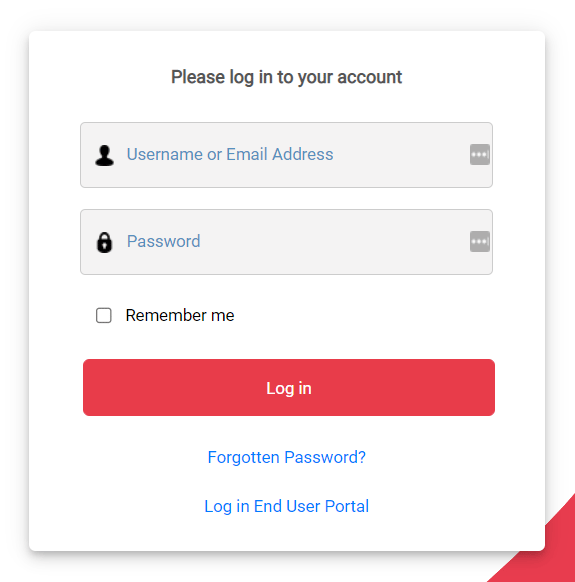
How to Obtain Your Workspace Key
The domain serves as your workspace key. https://{workspace-key}.halopsa.com/
How to Obtain Your Base URI
-
After logging in to HaloPSA, go to Configurations > Integrations > HaloPSA API.
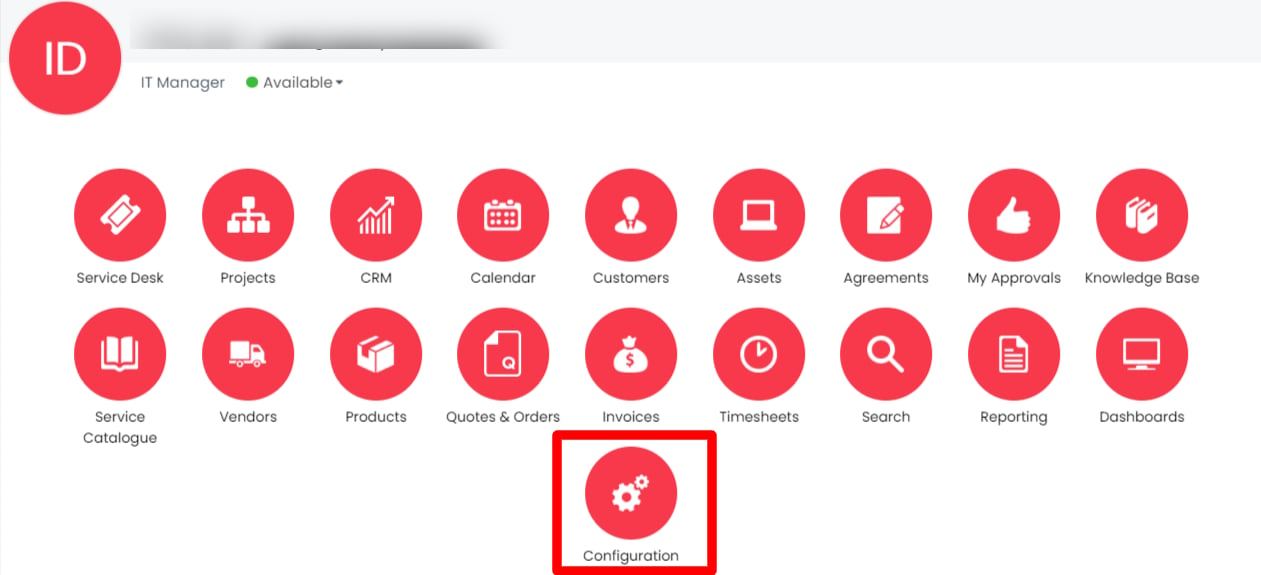
-
The Authorisation Server shown in API Details is your Base URL. Save it for later.
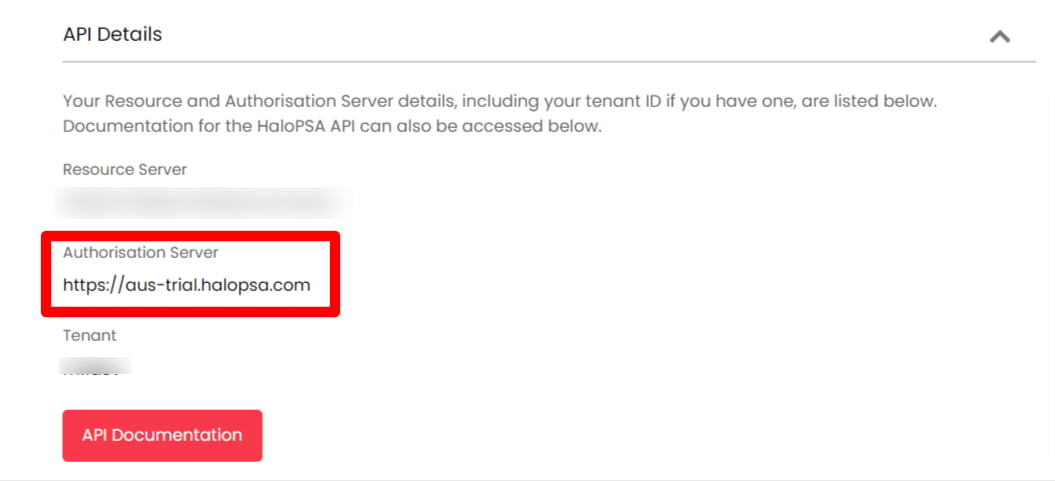
How to Obtain Your Client ID
-
Next, on the HaloPSA API page, click View Applications under Applications.
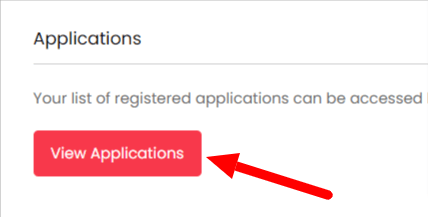
-
Click New in the top right to create an Application.

-
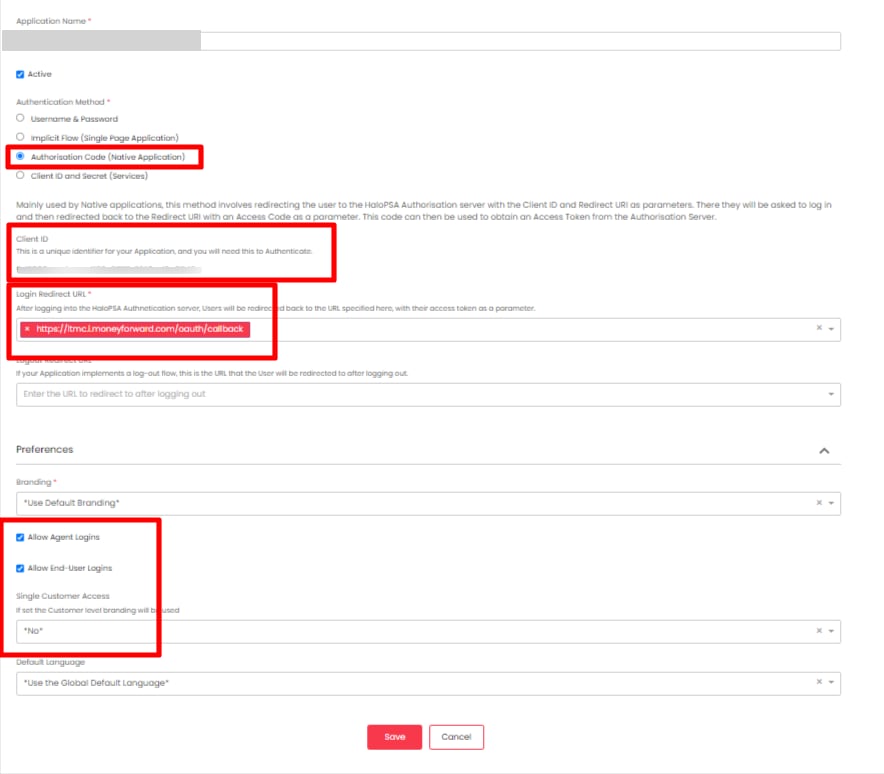
Fill in the fields as follows.
Once you enter the Authentication Method, the Client ID will be displayed. Save it. The Client ID can also be viewed after saving.
[Details tab]
- Application Name: Enter any name of your choice
- Authentication Method: Check
Authorisation Code (Native Application) - Login Redirect URL: Enter
https://itmc.i.moneyforward.com/oauth/callback - Preferences: Check both
Allow Agent LoginsandAllow End-User Logins
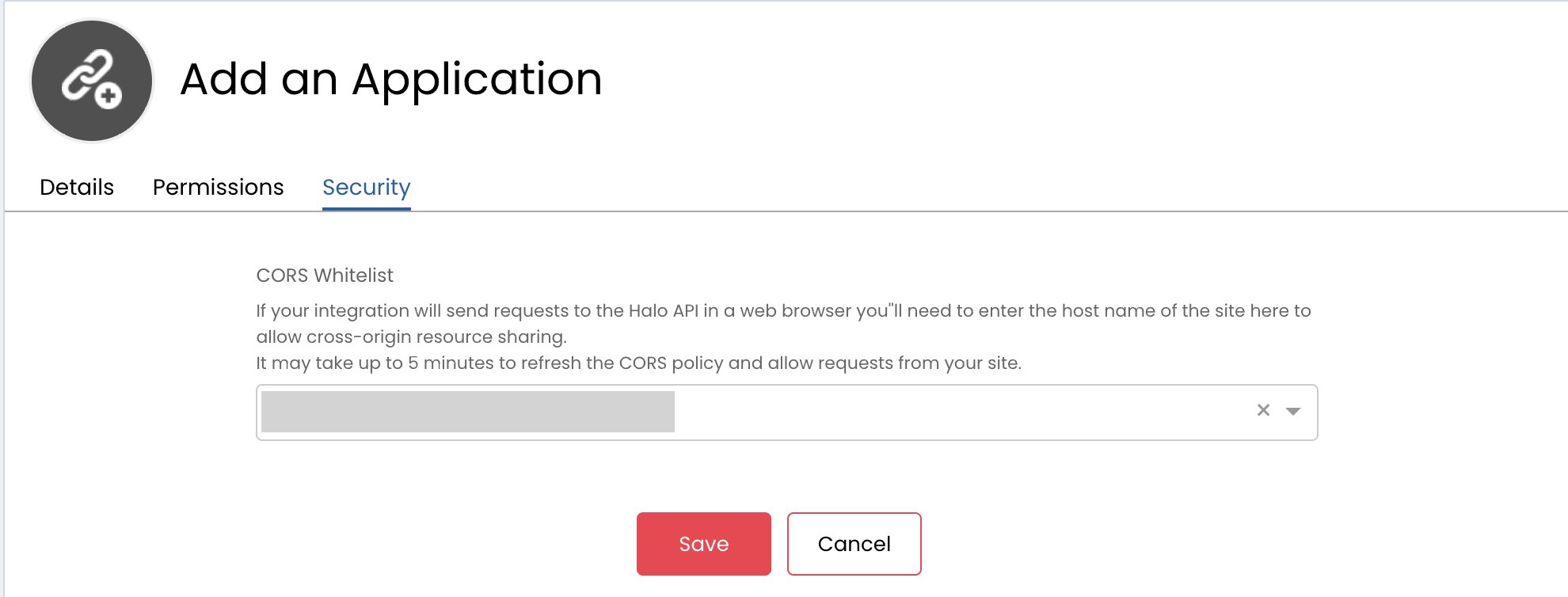
- CORS Whitelist: Enter
https://itmc.i.moneyforward.com/
Integration Setup
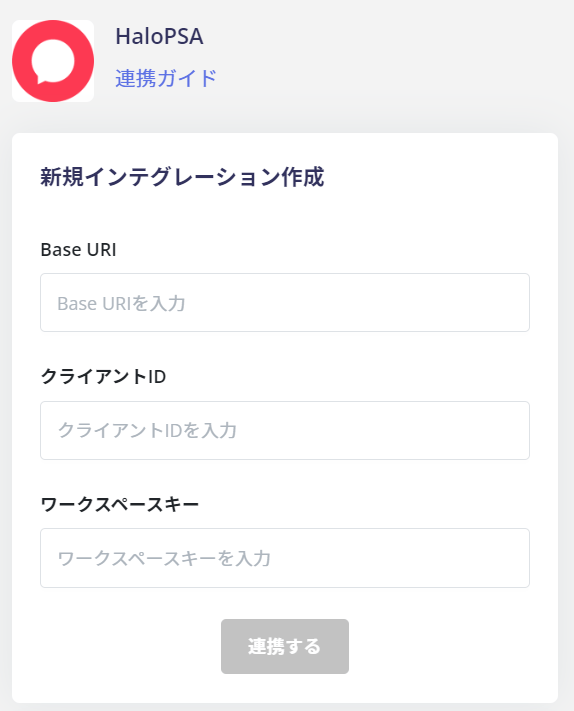
- In the integration screen, search for HaloPSA.
-
Enter the Base URI, Client ID, and workspace key obtained in the previous steps, then click Connect.
- Once the integration with HaloPSA is successful, the registered user information will appear in the account list. If the process does not complete successfully. Click Edit from the Status tab on the integration screen and try connecting again. If the issue persists, please contact us via chat.