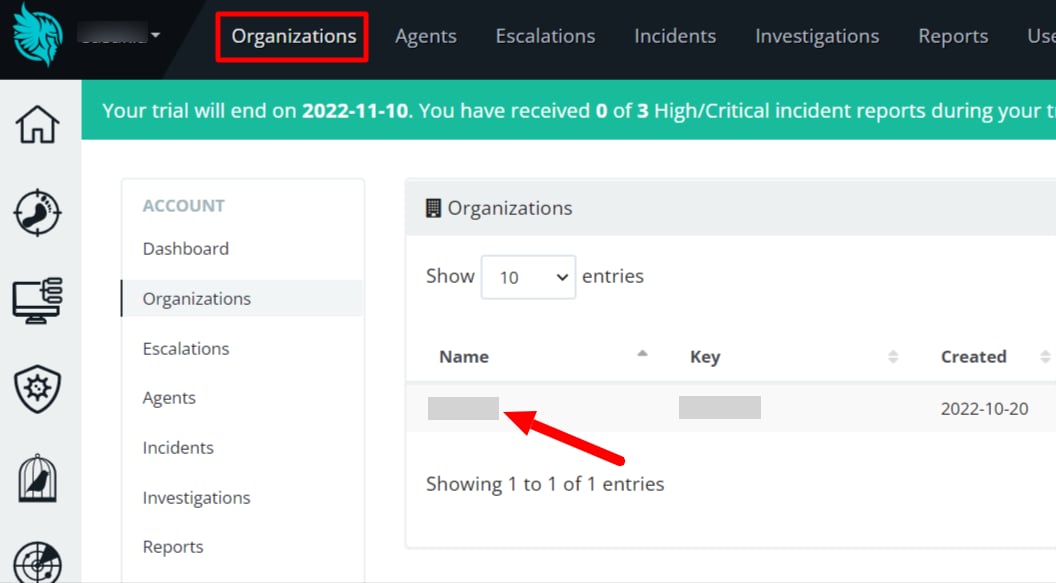
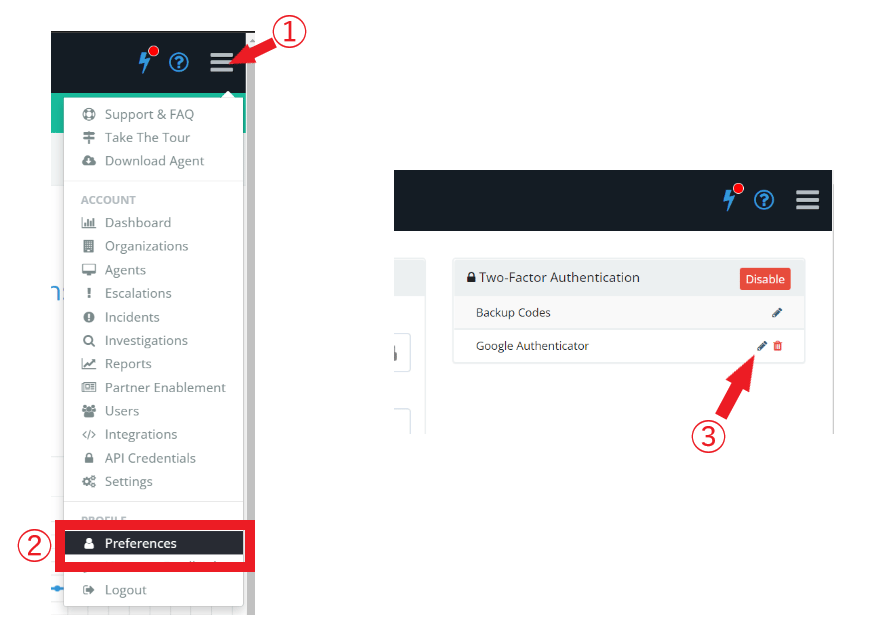
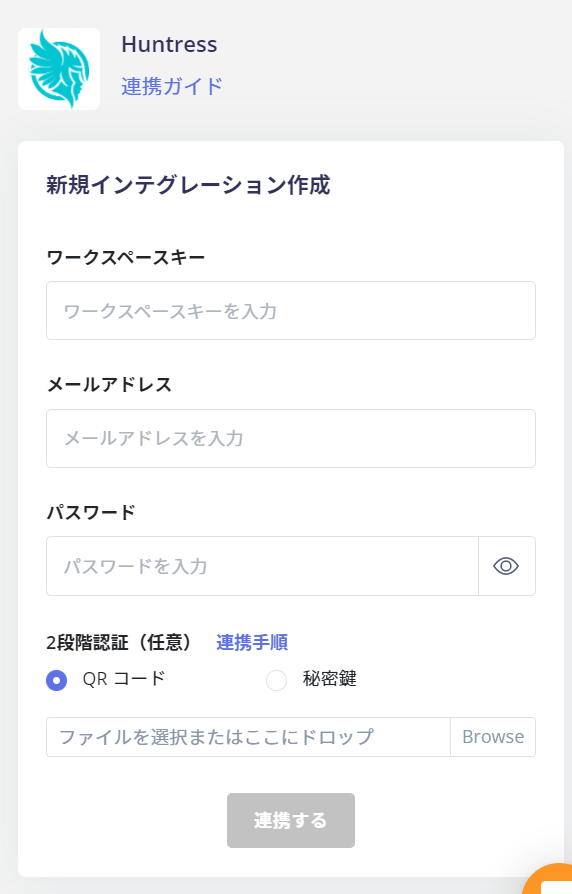
After logging in to Huntress, select Organization > Linked Organization from the top menu tab.A part of the URL of the linked Organization page will be the workspace key, so save it.https://****.huntress.io/org/ {workspace key}
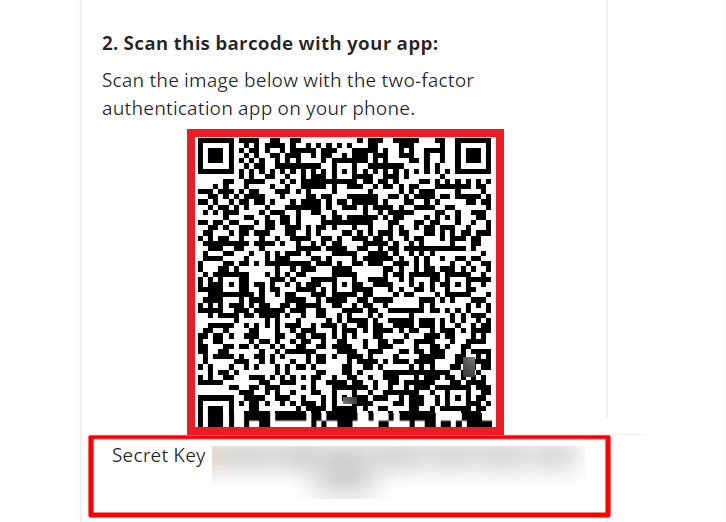
Enter the workspace key obtained in the previous step and set up two-factor authentication. Then enter the email address and password for logging in to Huntress, and click Link.
If you successfully link with Huntress, the registered user information will be displayed in the account list. If it does not complete successfully, please edit from the status tab of the integration screen and try linking again. If you can’t solve it, please contact us by chat.
Immediately after signing up, the account that signed up for the Organization is not included.This service retrieves accounts in the Organization, but the account that signed up is not retrieved. Please manually add the sign-up account to the Organization and run the sync again.