

Integration Specifications
Prerequisites
Getting a user token
A Guru admin, or a user with a custom role that has the Manage Apps & Integrations permission, generates the user token.-
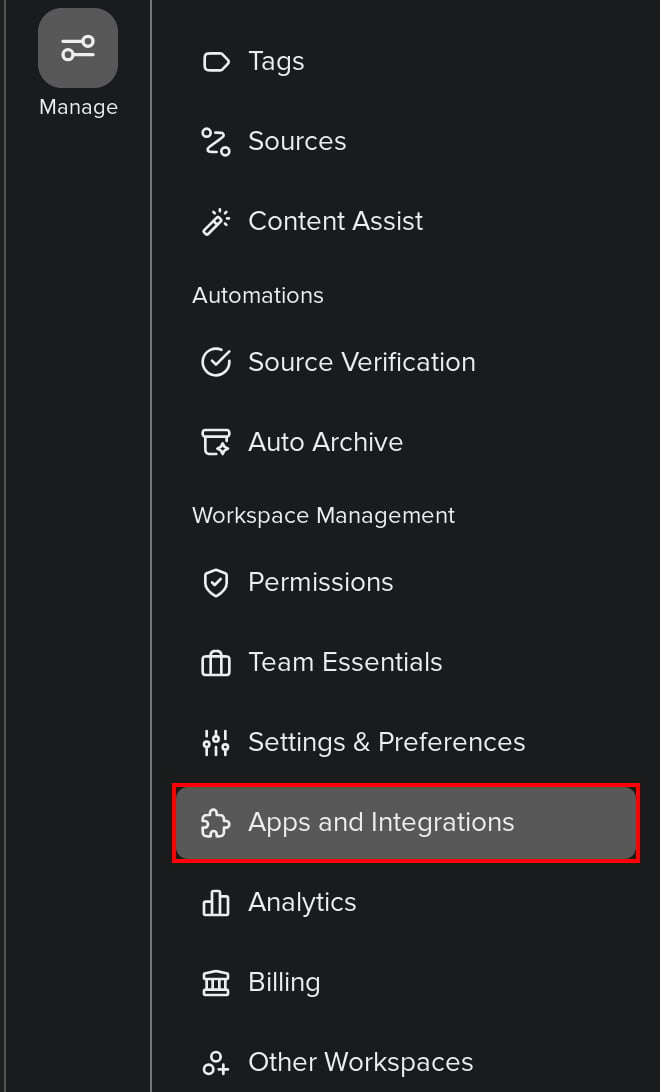
Log in to Guru and select Apps and Integrations from the Manage menu on the left.
-
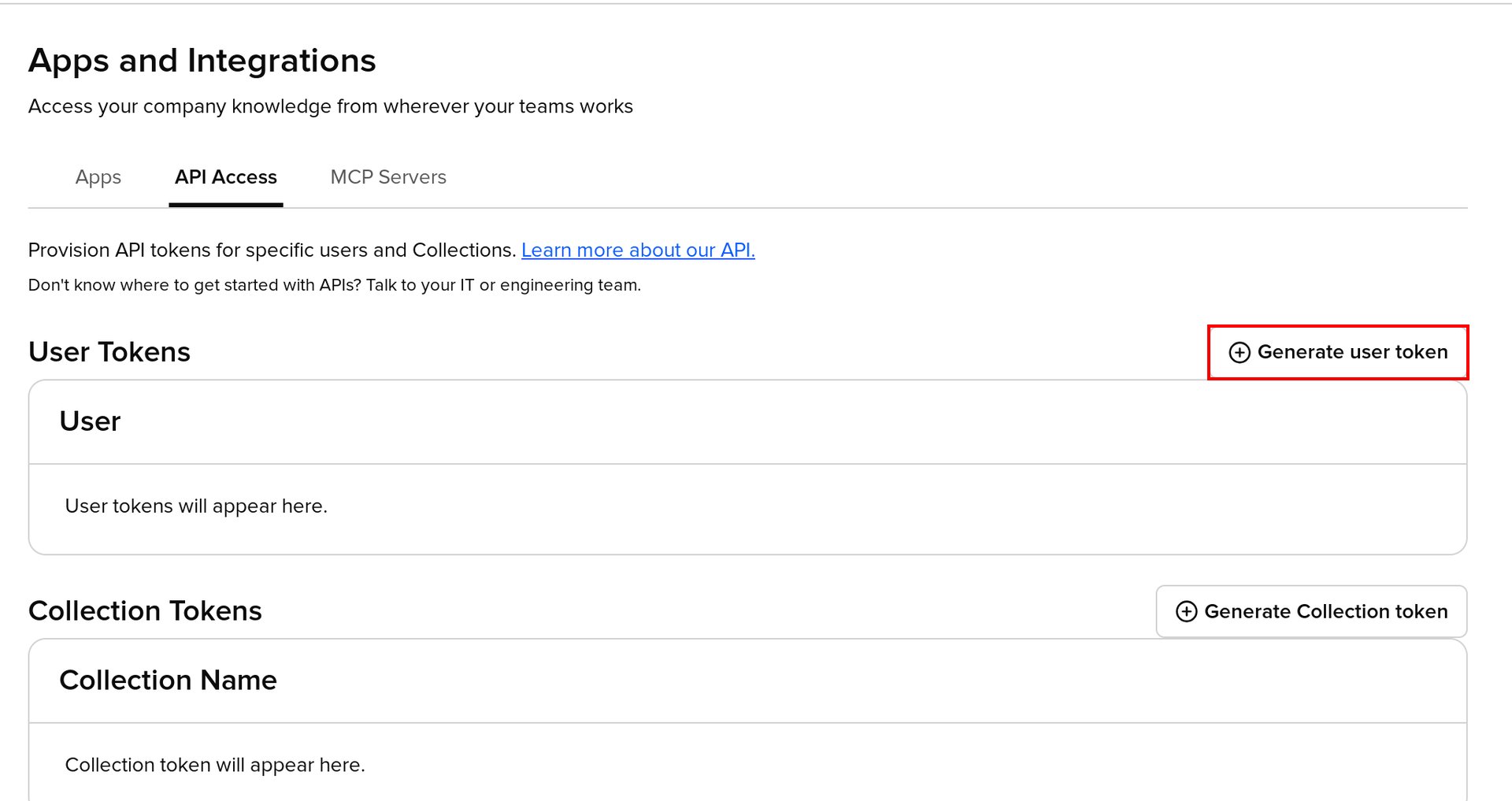
Select the API Access tab, then click Generate user token under User Tokens.
-
In User, enter and select the name of the user to generate the token for, then click Generate token.
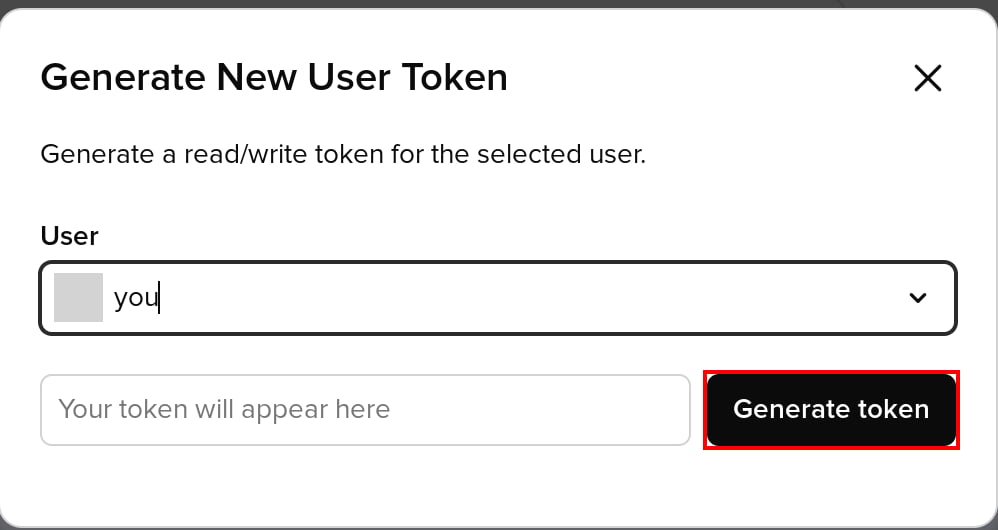
- Copy the generated token and save it.
You can manage generated tokens in the User Tokens list. Click the circular arrow icon to reissue a token, or click the trash can icon to revoke it. When you reissue a token, click Copy token to copy it before closing the window.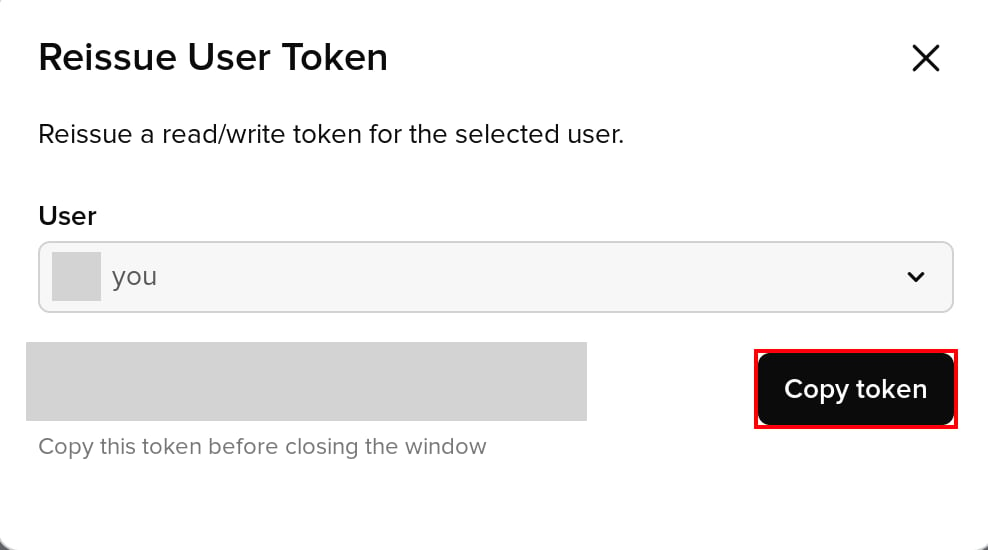
Setting up the integration
- Search for Guru on the integrations screen.
-
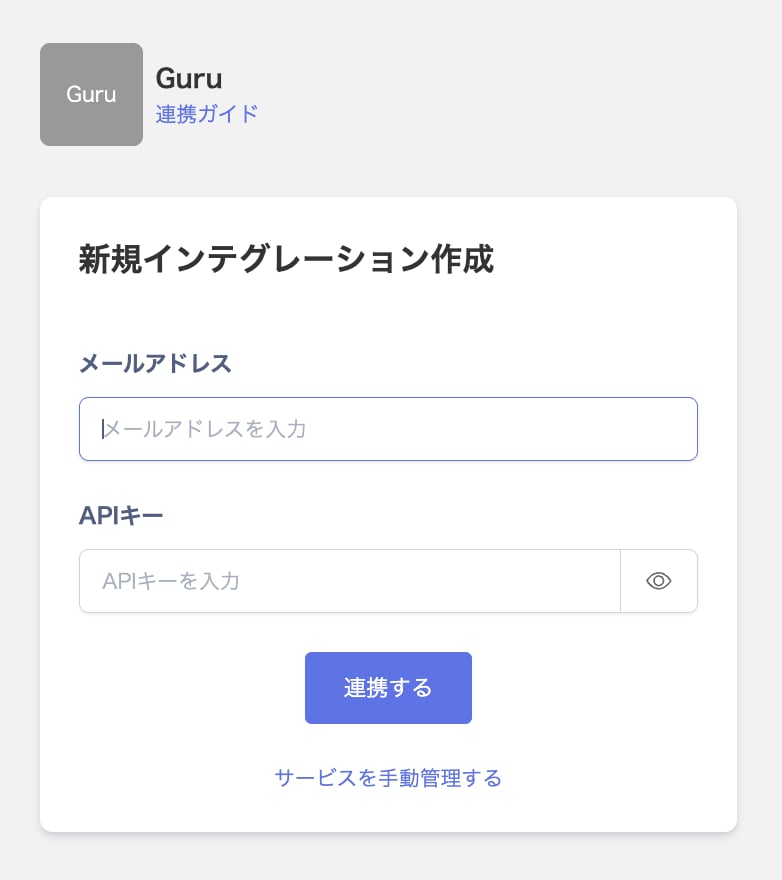
In Email address, enter the email address of the user you selected in step 3 of the prerequisites (usually an admin). In API key, enter the user token you obtained in the previous step, then click Integrate.
- Once the integration with Guru succeeds, registered user information appears in the account list. If it doesn’t complete successfully, first try the steps in Troubleshooting failed SaaS integrations. If that doesn’t resolve it, check Information to provide and contact support.