Supported Features

Account Deletion Account Creation

Prerequisites

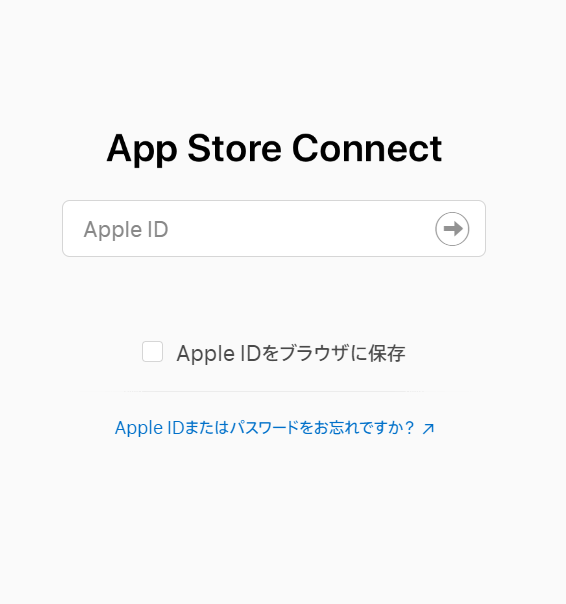
How to Log In to App Store Connect

Go to the App Store Connect login page, enter your Apple ID and password, and log in. App Store Connect login screen

How to Obtain the API Key

Refer to Apple’s documentation to obtain an App Store Connect API key.
  1. Log in to App Store Connect and open Users and Access > Keys in App Store Connect
  2. Copy the Issuer ID from App Store Connect
  3. Issue a key as Admin in App Store Connect and save the Key ID
  4. Download the API key from App Store Connect

Integration Setup

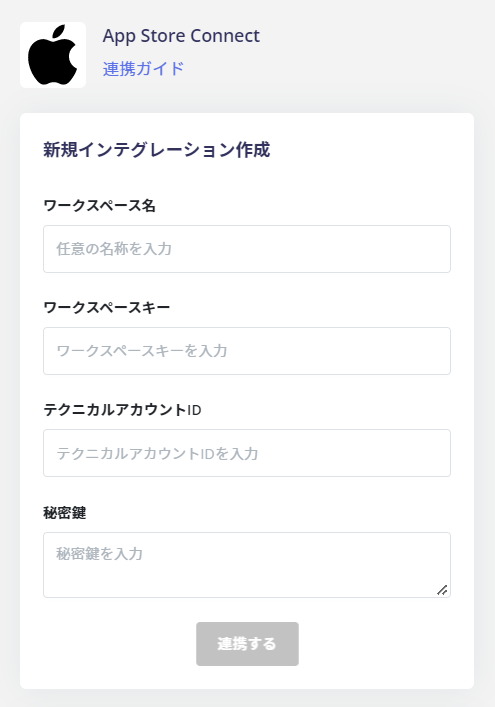
In the MoneyForward Admina integration screen, search for App Store Connect and click Connect. Search for App Store Connect on Admina integration screen Enter the information obtained in the previous steps and click Connect. The private key is described below.
  • Workspace Name: Any string (e.g., company name)
  • Workspace Key: Key ID
  • Technical Account ID: Issuer ID (Technical Account ID)
  • Private Key: API key (described below)
Integration setup form

About the API Key File

When you open the file, the key is listed as shown below. Copy all the characters (including -----BEGIN PRIVATE KEY----- through -----END PRIVATE KEY-----) and paste them into the private key field. API key file contents Once the integration with App Store Connect is successful, the registered user information will appear in the account list. If the setup does not complete successfully, go to the Status tab on the integration screen, click Edit, and try connecting again. If the issue persists, please contact us via chat. For an overview of the App Store Connect integration, see the integration page.

Last modified on June 18, 2026