

Integration Specifications
Integration with Canva Enterprise is supported.
Prerequisites
How to Log In to Canva
On the Canva login page, select your preferred login method or enter your email address and password to log in.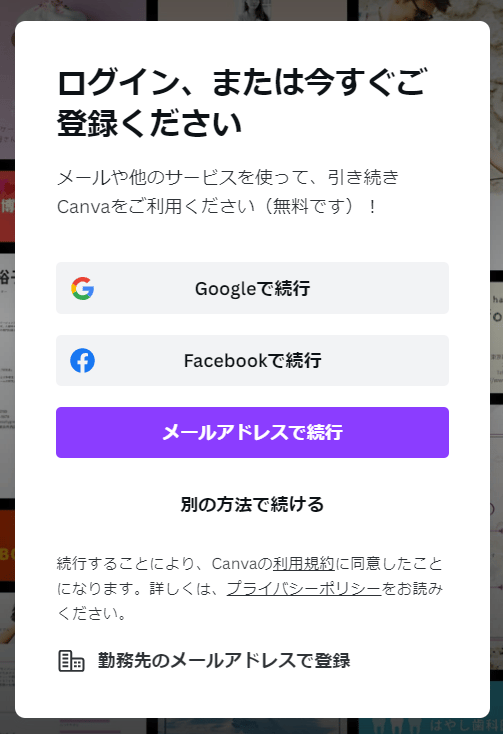
How to Obtain the Access Key
For reference, see also Set up single sign-on (SSO) for Enterprise (external site).-
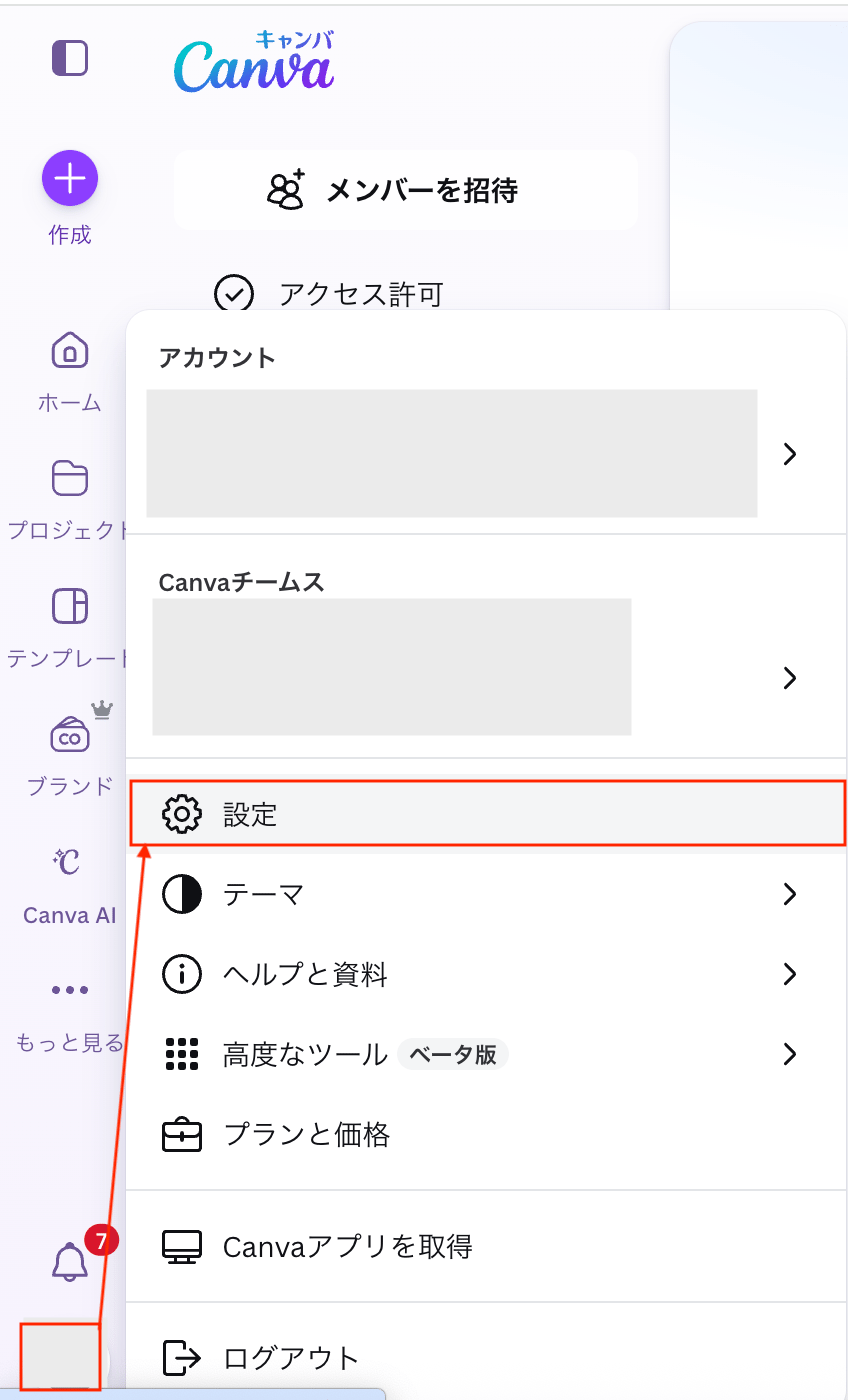
Log in to Canva and click your account in the lower left > [Settings].
-
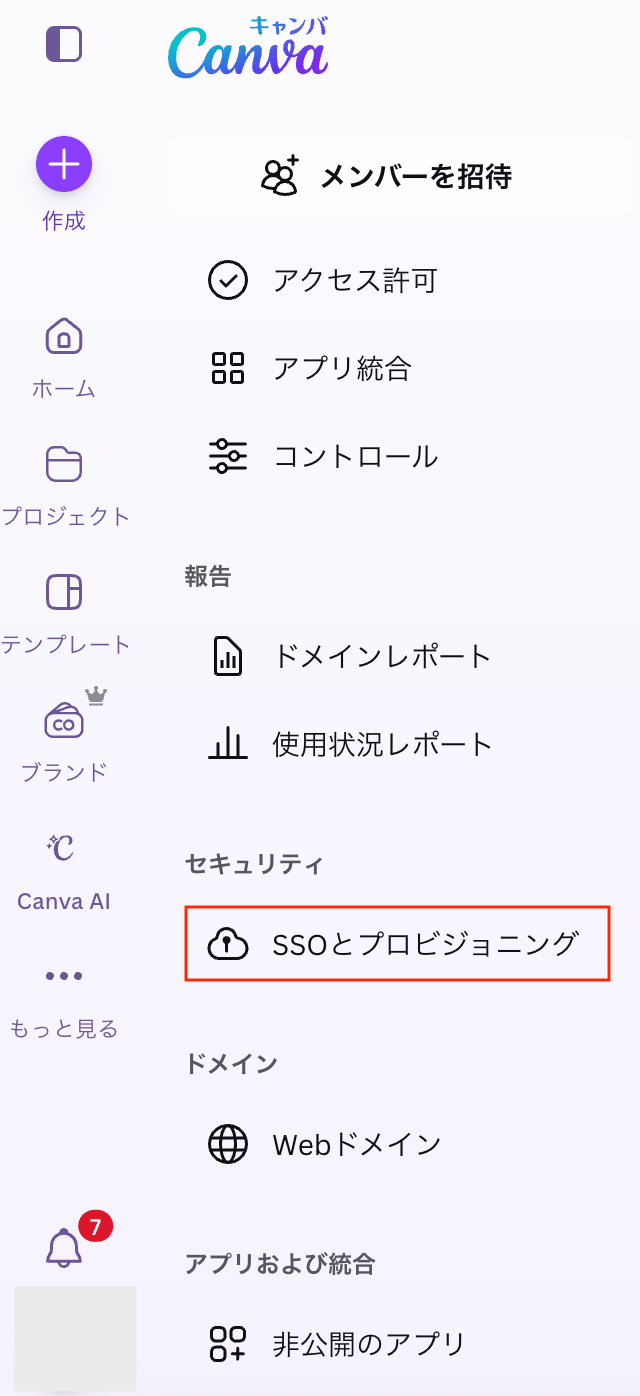
Click [SSO and Provisioning].
-
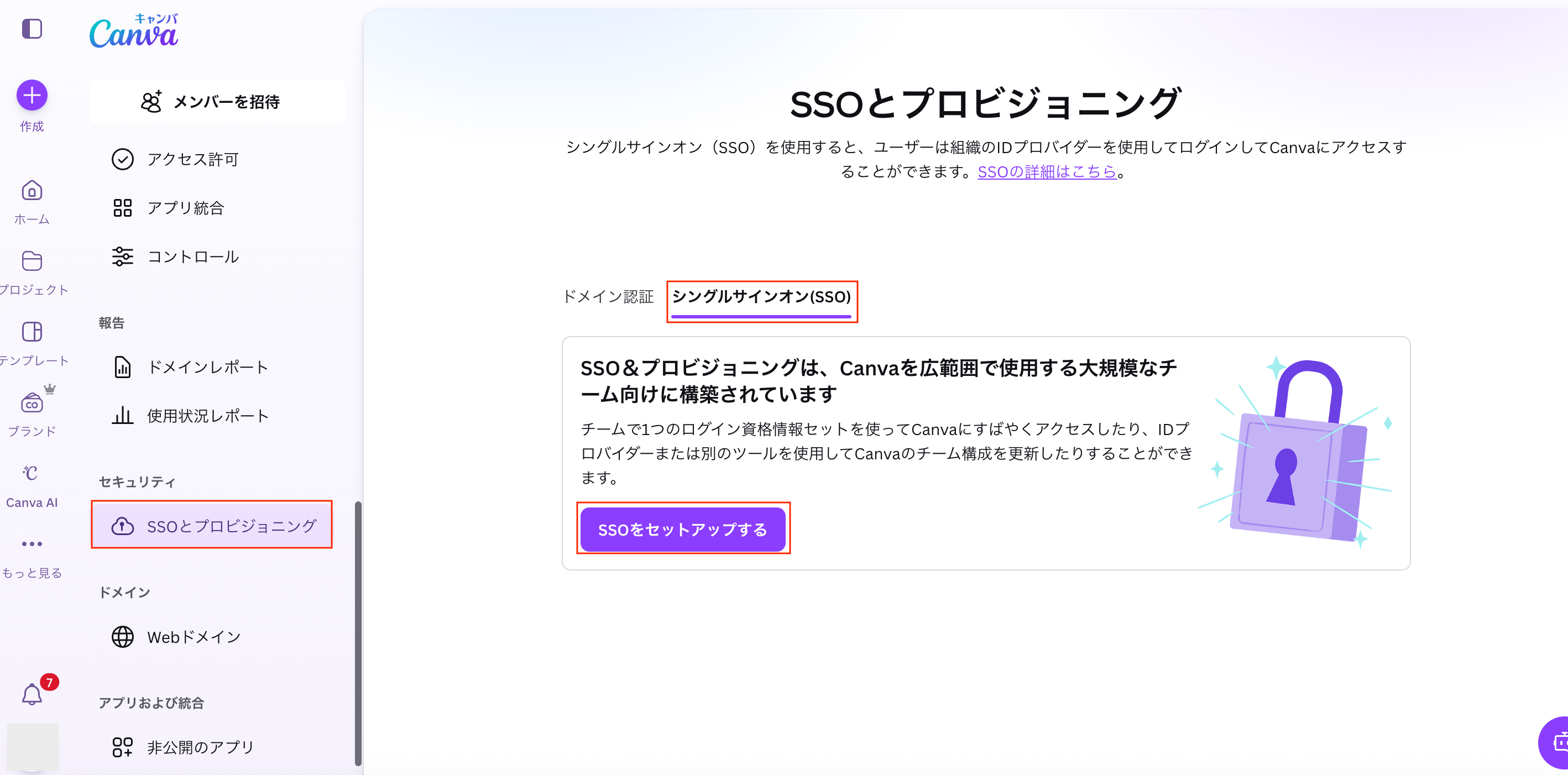
On the “SSO and Provisioning” screen, go to the “Single Sign-On (SSO)” tab and click [Set up SSO].
-
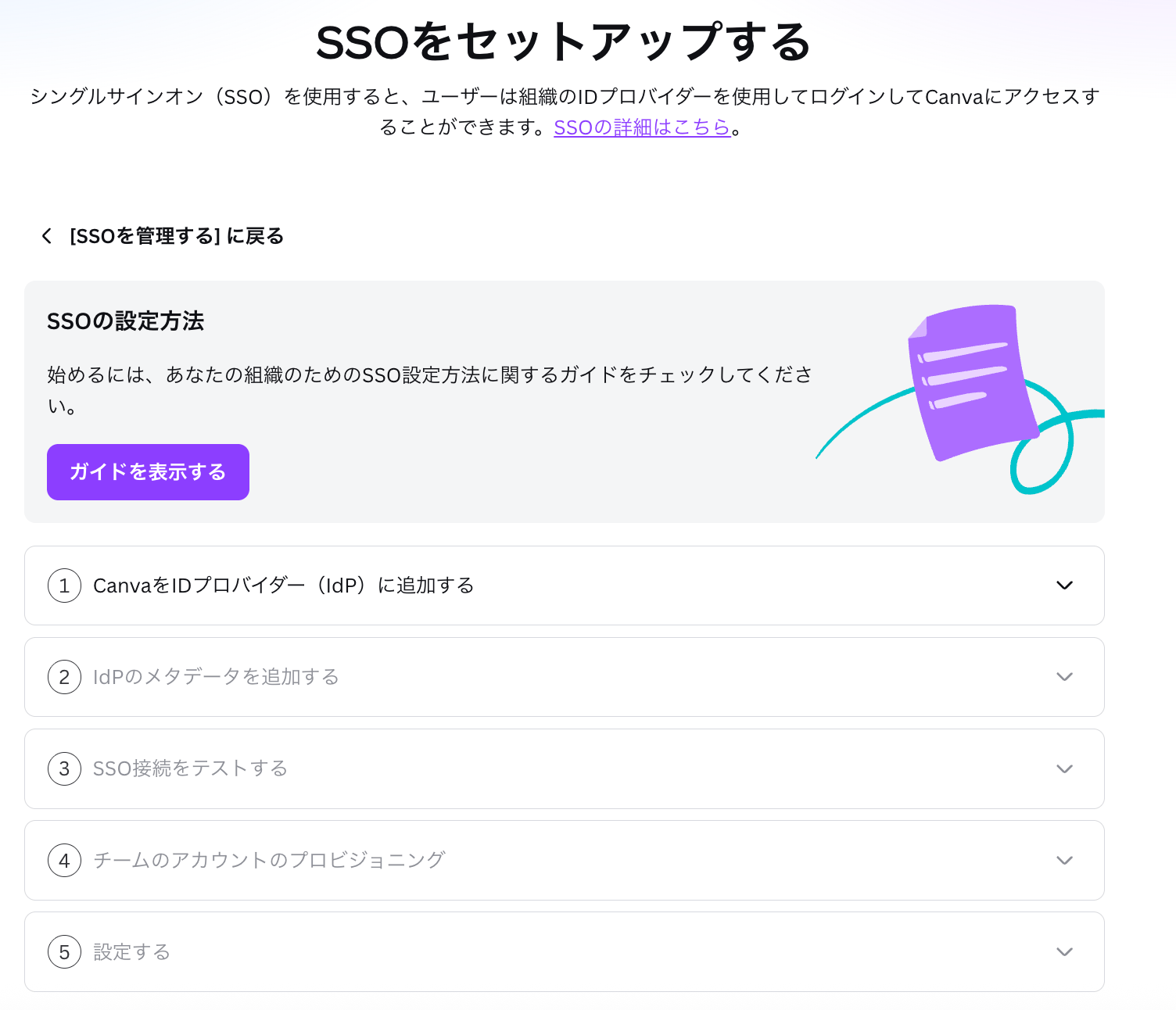
Configure the “Set up SSO” screen. For configuration details, refer to Set up single sign-on (SSO) for Enterprise (external site).
-
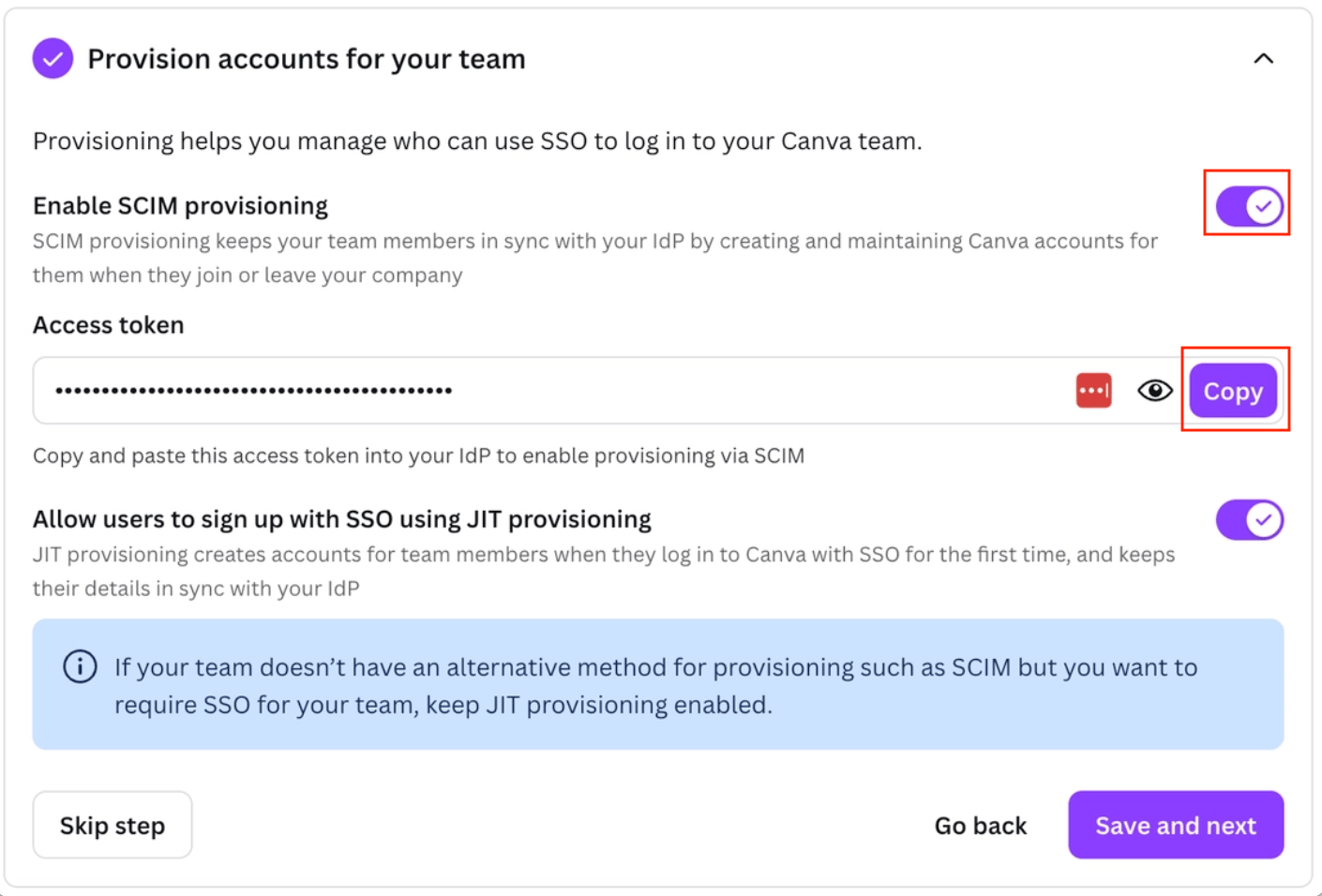
Issue the access key on the “Provision accounts for your team” screen. Configure the settings as shown below and copy the access key.
Integration Setup
- In the integration screen, search for Canva.
-
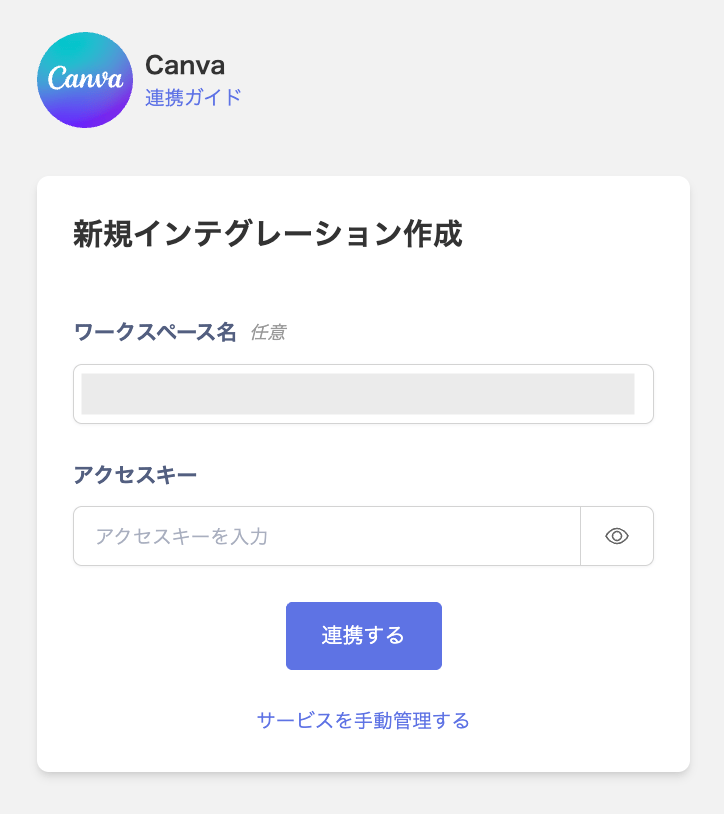
Enter the email address and password with administrator privileges. Add the workspace key obtained in the previous step, then click Connect.
- Once the integration is successful, the registered user information will appear in the account list.