

Integration Specifications
Prerequisites
How to Log In to Drata
Go to the login page, enter your email address and password, and log in.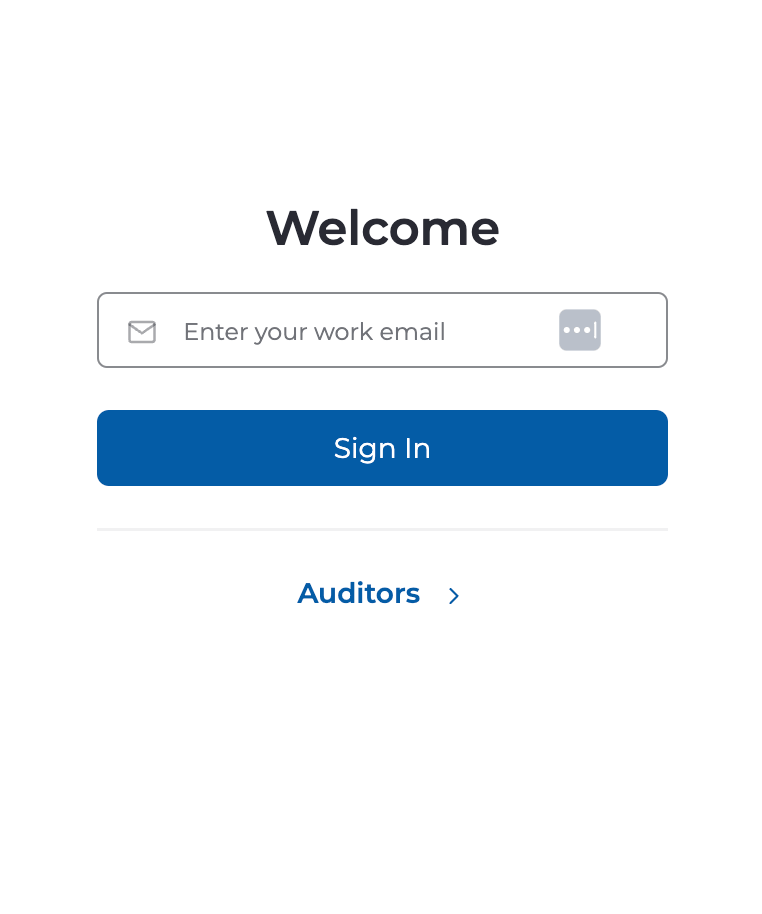
How to Find Your API Key
-
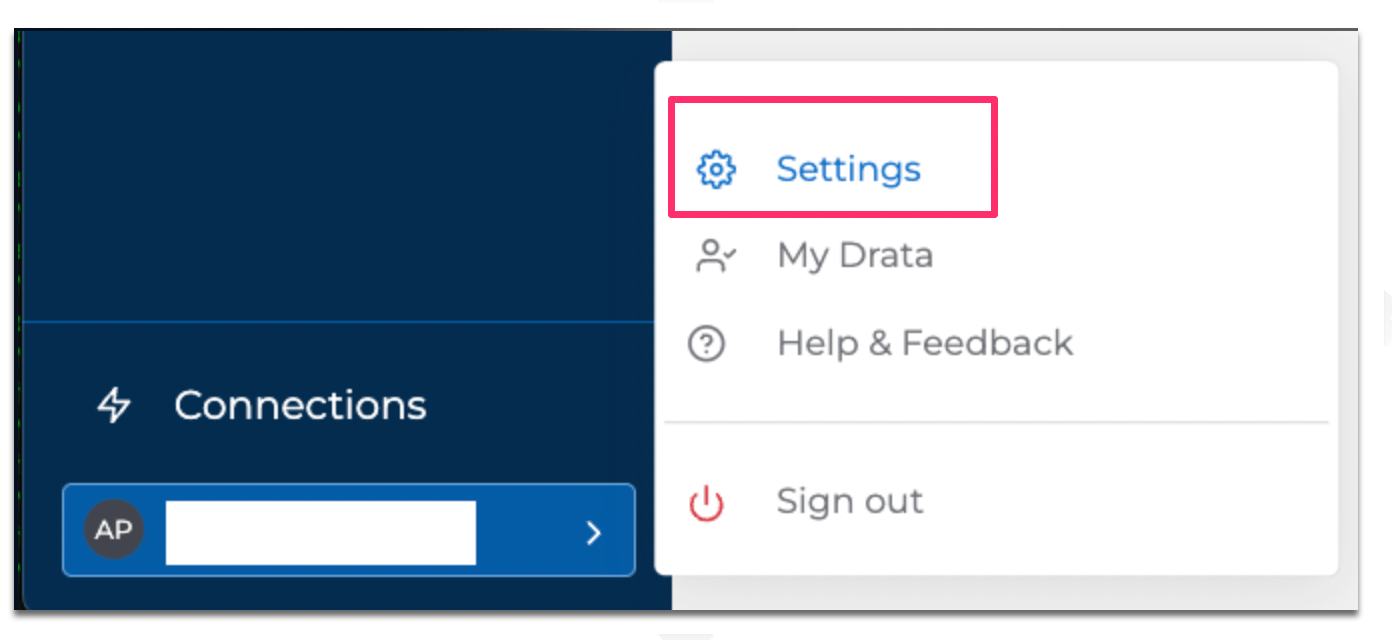
Log in to Drata and click Settings from the icon in the lower left.
-
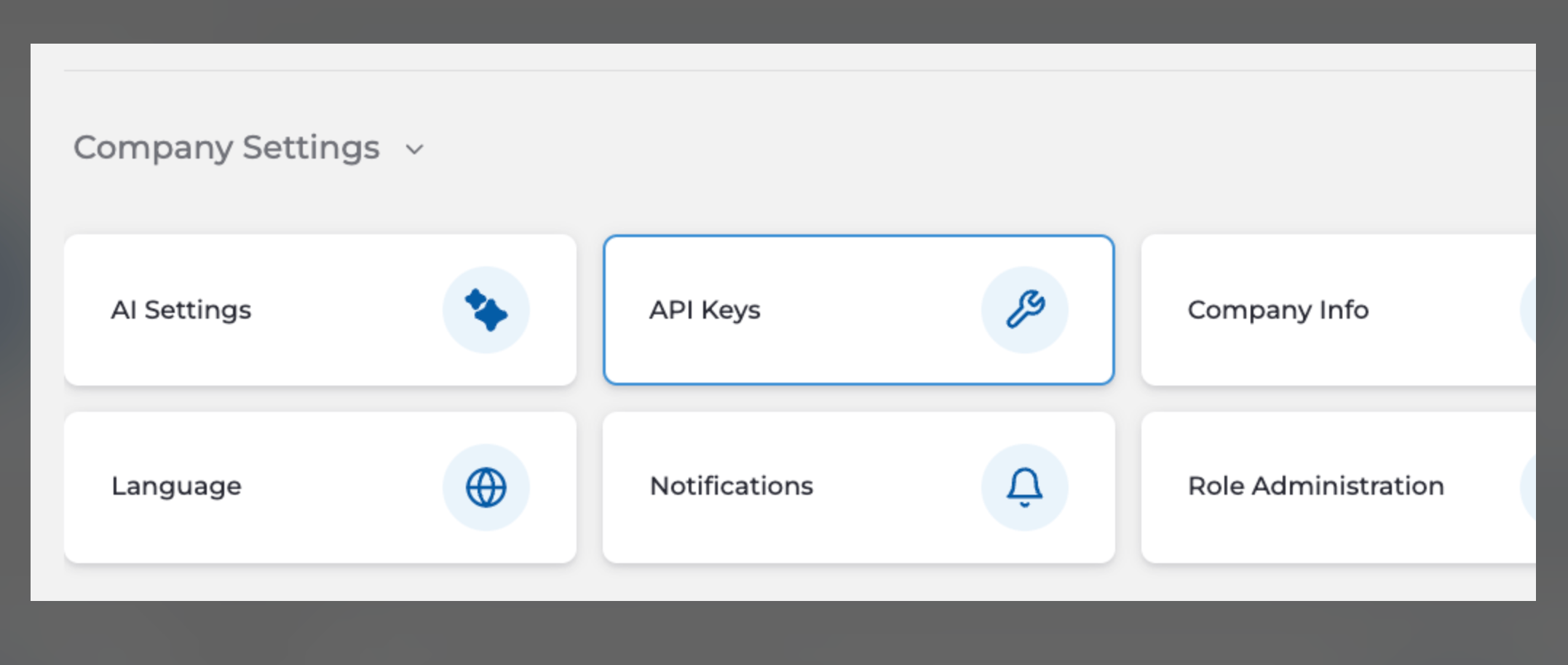
Click Company Settings > API Keys.
-
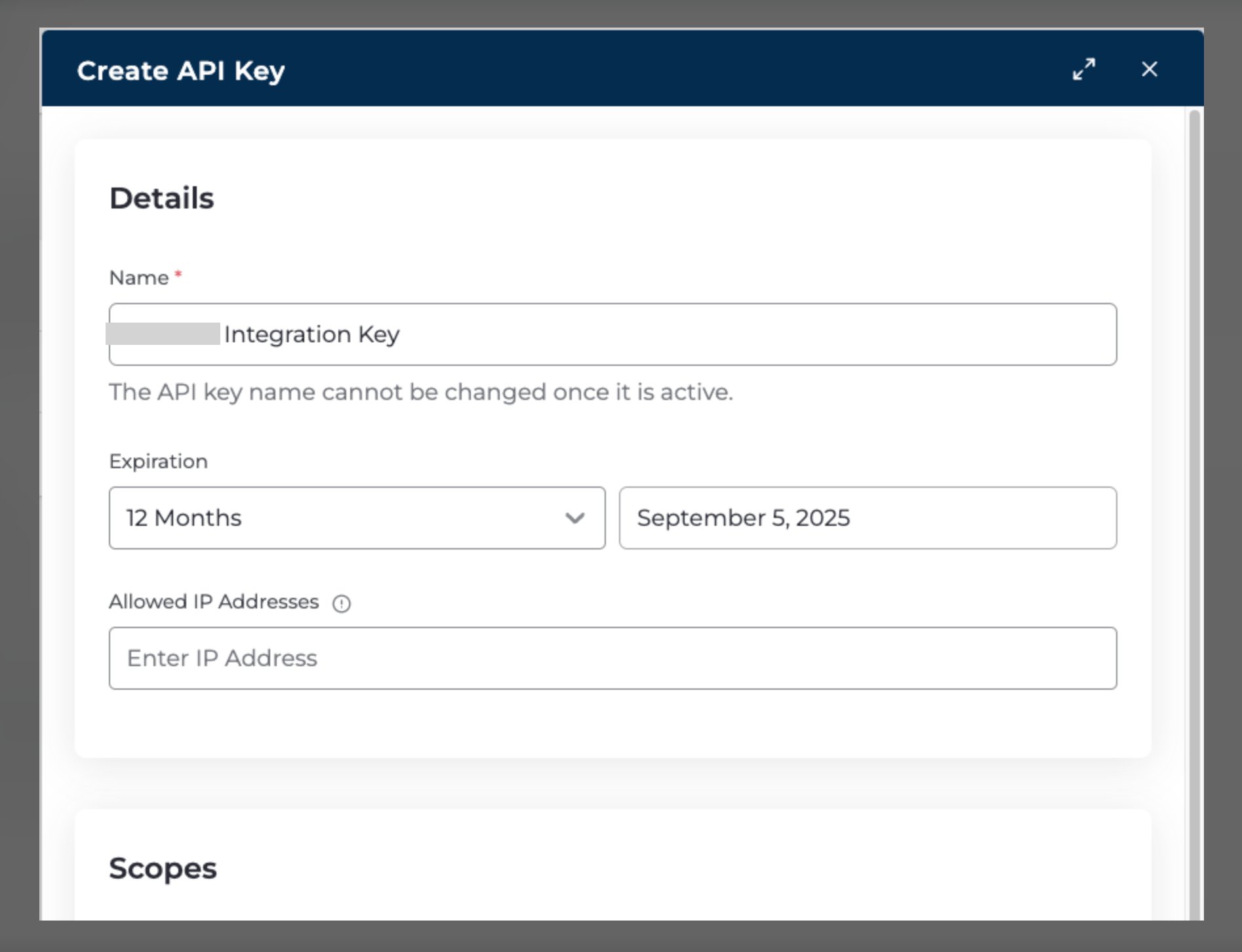
Under Create API Keys, enter the following values:
- Name: Enter any name for the API key.
- Expiration: Set the expiration date for the API key. Once it expires, you will need to reissue and reconnect.
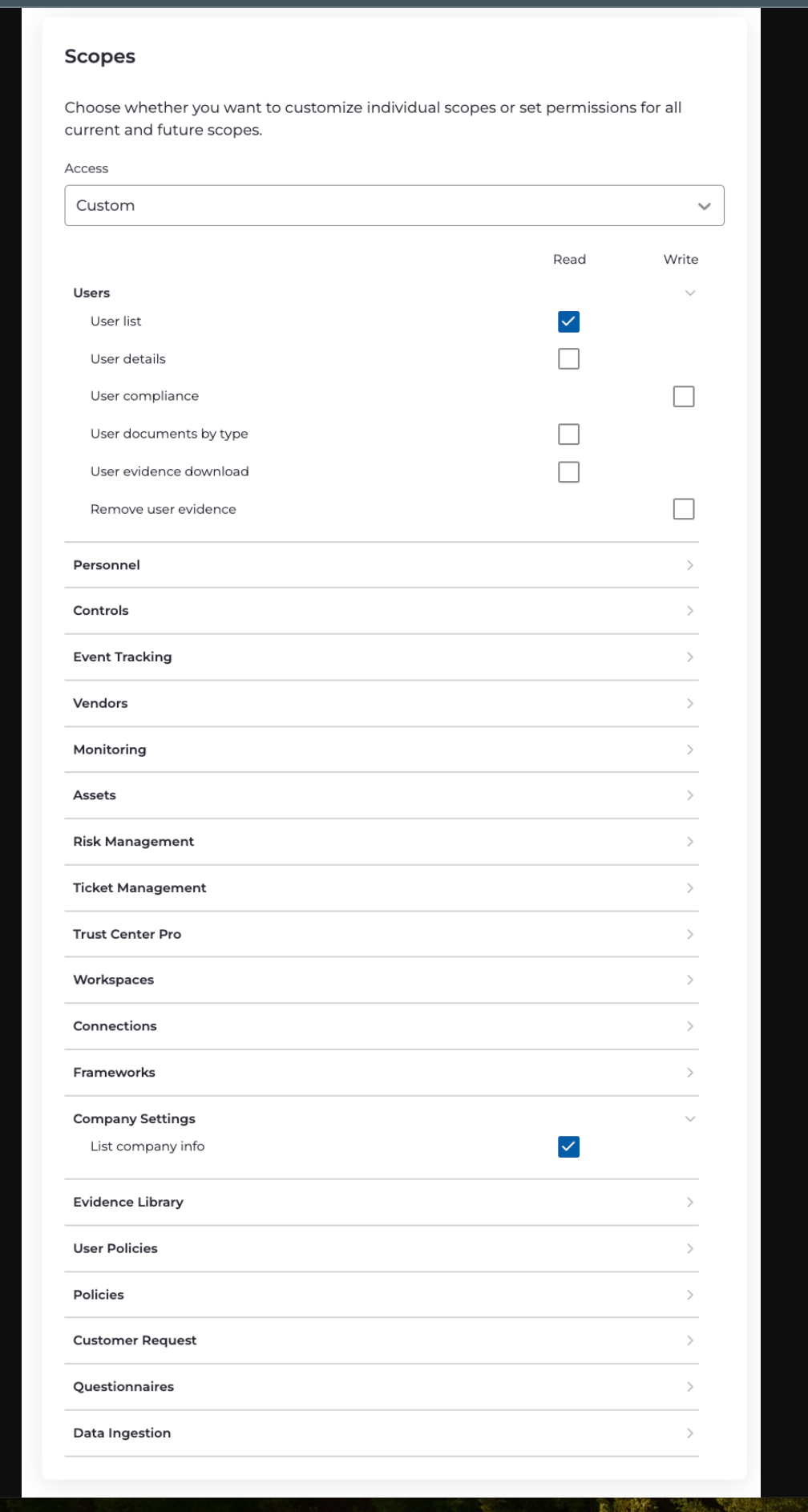
- Scope: Change to Custom and check
User Listand Company Settings >List company info.
-
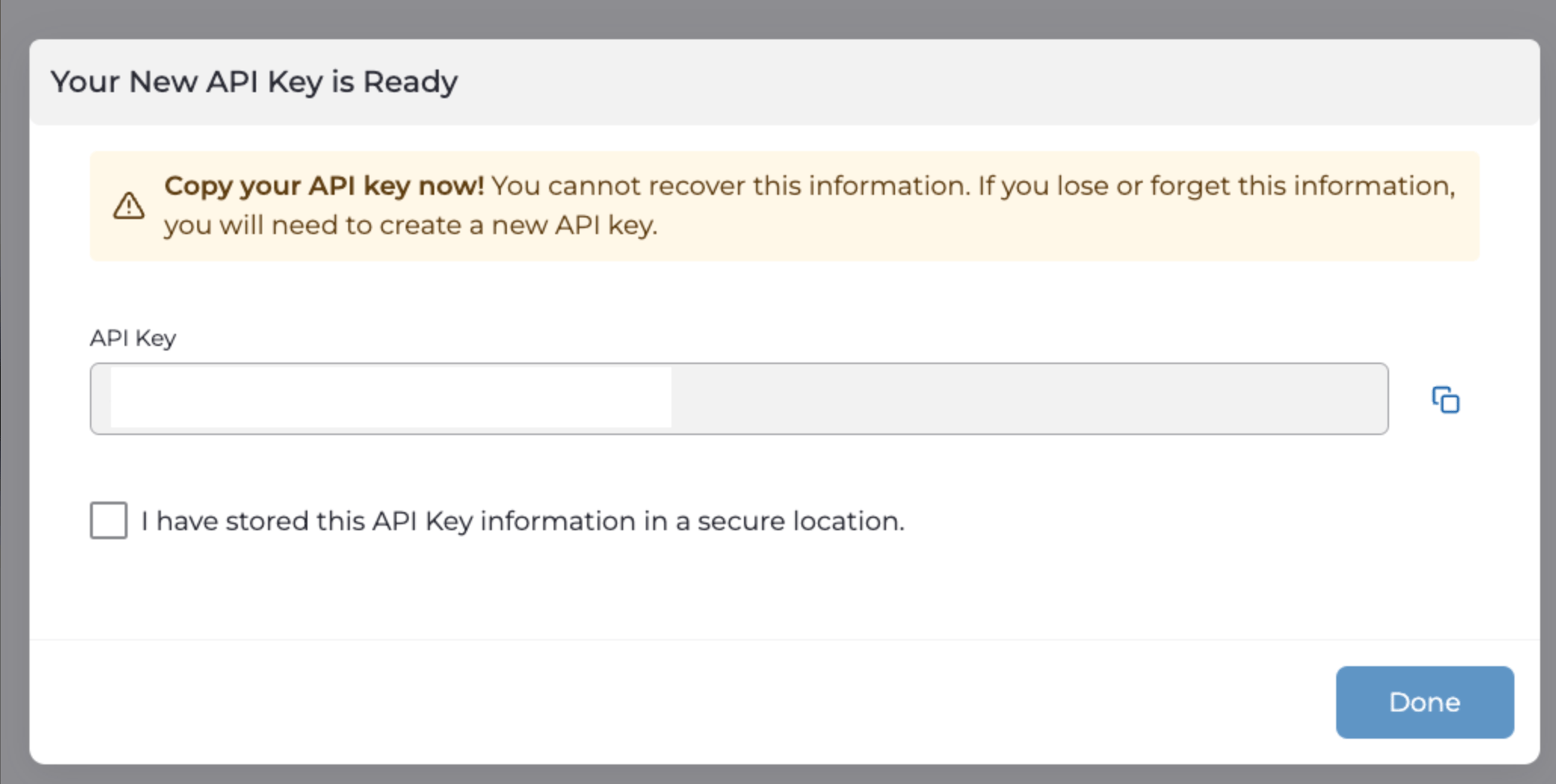
The API key will be displayed. Copy and save it. The API key has now been issued.
How to Determine Your Region
Your region is determined by the URL you are using. It will be either NA or EU.Reference: BASE URL (Drata API Documentation)
Integration Setup
- In the integrations screen, search for Drata.
-
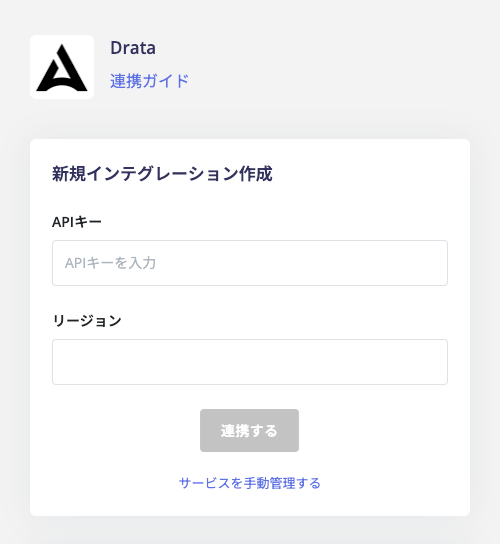
Enter the API key and region (NA or EU) obtained in the previous steps, then click Connect.
- Once the integration is successful, registered user information will appear in the account list. If the integration does not complete successfully. Go to the Status tab on the integrations screen, click Edit, and try connecting again. If the issue persists, please contact us via chat.