Supported Features

Account Deletion Account Provisioning

Advance Preparation

How to Log In

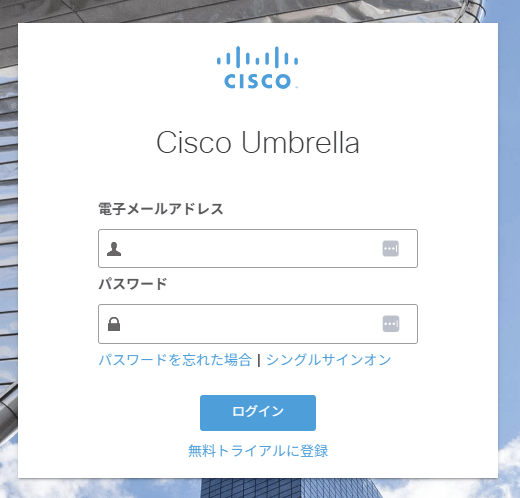
On the Cisco Umbrella login page, enter your email address and password to log in. Cisco Umbrella login screen

How to Check Your Client ID and Client Secret

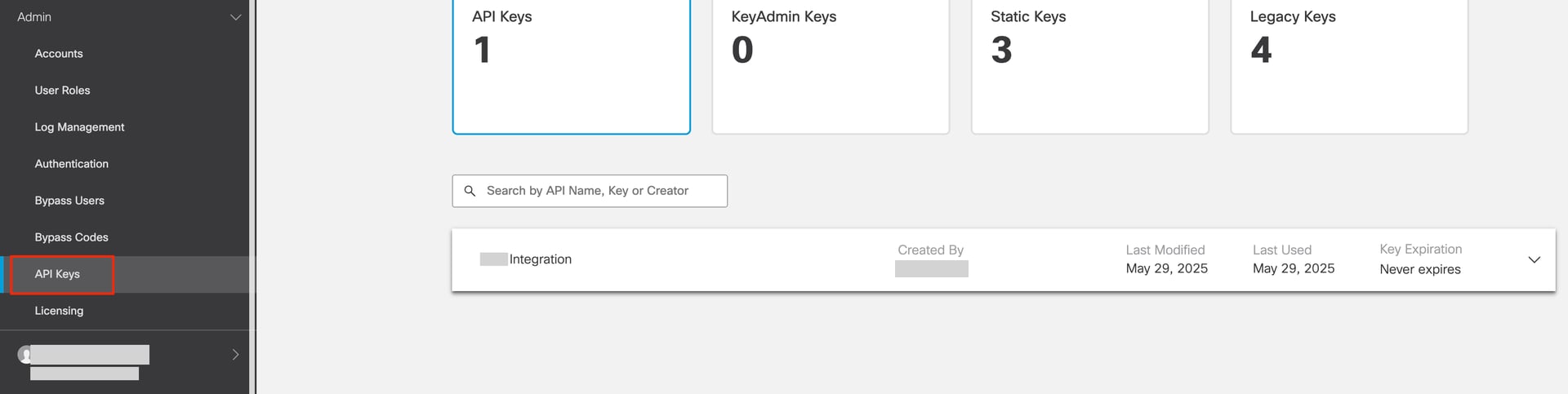
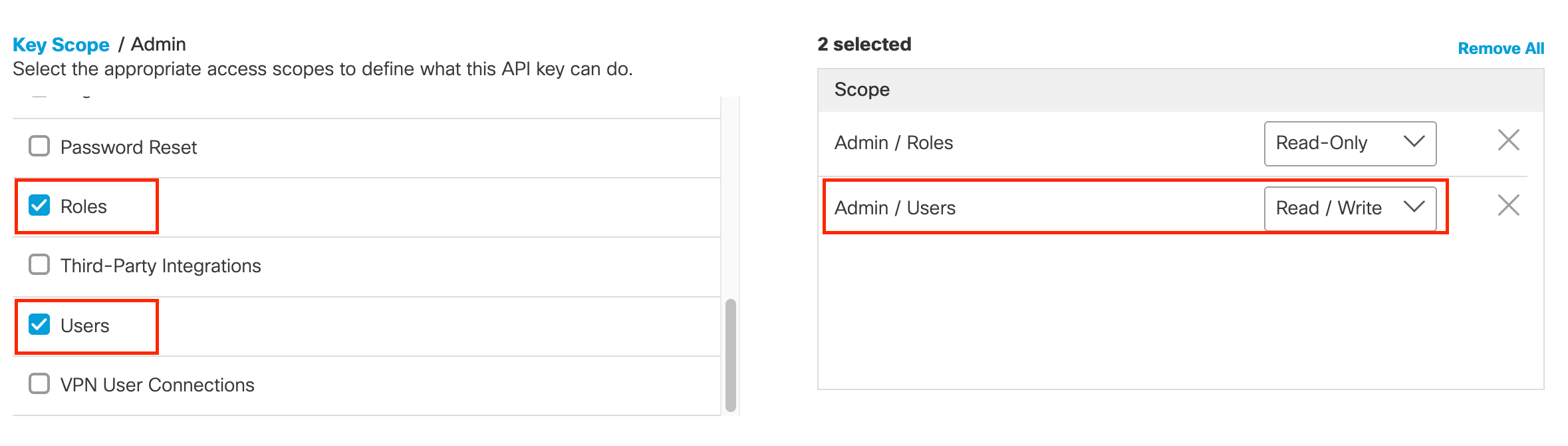
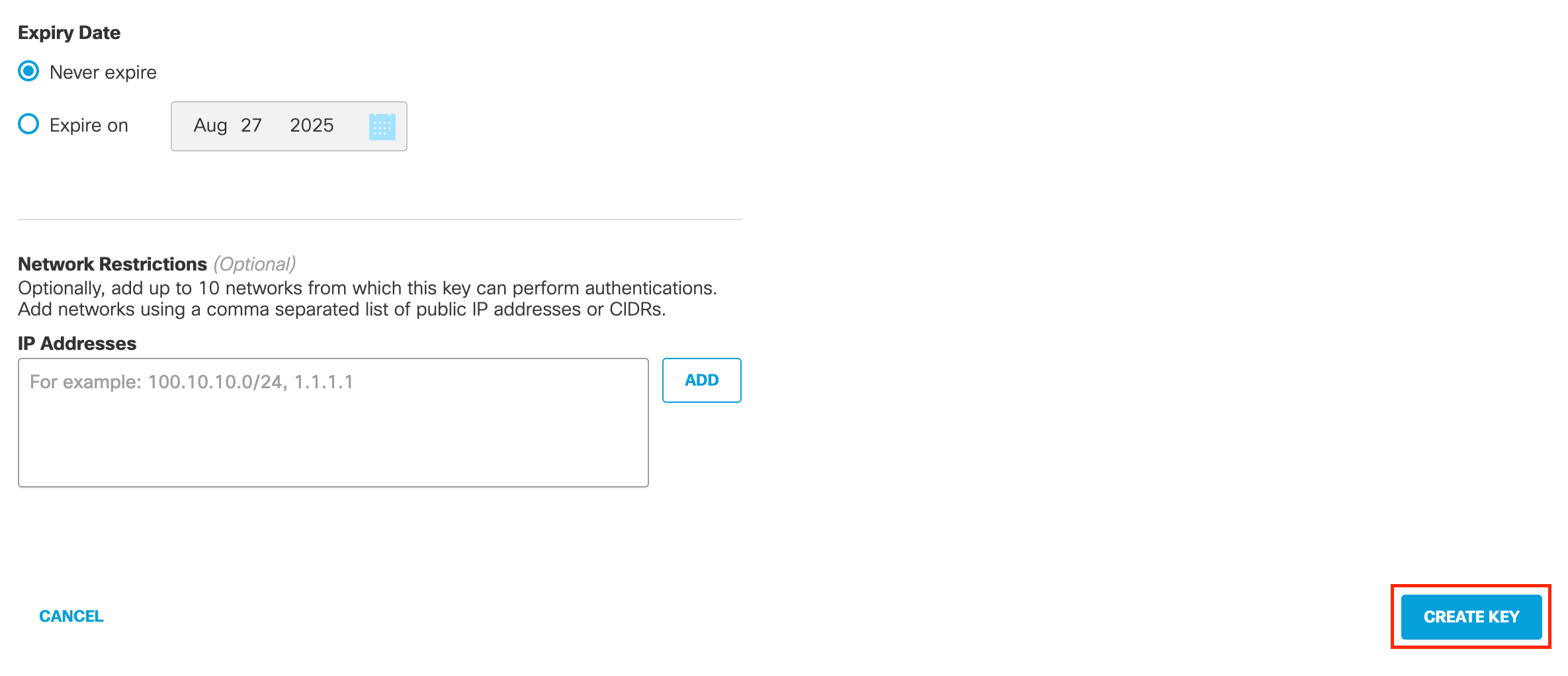
After logging in to Cisco Umbrella, click Admin > API Keys in the left menu. Admin > API Keys menu Click the plus sign in the top right to add a new API key. Add API Key button Then, in the “API Key Name” field, enter the name of your new API key. In the “Key Scope” list, check Admin > Users・Roles. Key Scope settings By default, Admin/Users is set to “Read-Only”. Change this to “Read/Write”. Change to Read/Write Click “CREATE KEY” at the bottom of the page. CREATE KEY button Copy the displayed API Key and Key Secret. The API Key is your client ID and the Key Secret is your client secret.
Your key secret will only be displayed to you once, so be sure to keep it safe as you won’t be able to view it again once you leave the page.
API Key and Key Secret display

Setting up the Integration

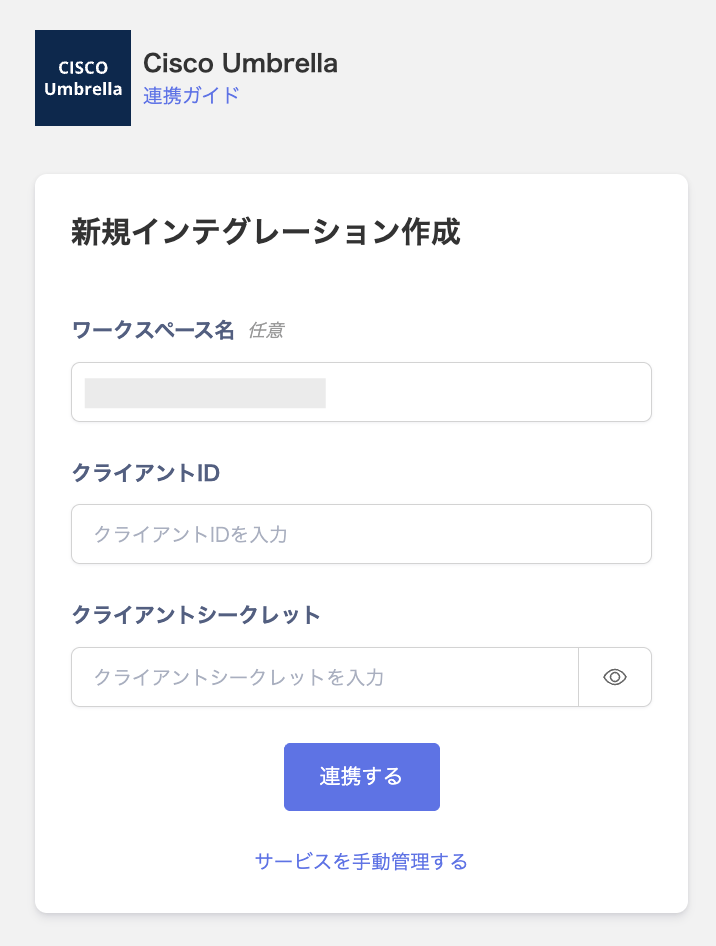
In Admina, search for Cisco Umbrella. Enter the workspace name, Client ID (API Key) and Client Secret (Key Secret) obtained in the previous step, and click Connect. Admina integration screen If the connection is successful, the registered user information will be displayed in the account list. If it doesn’t complete successfully, edit it from the Status tab on the Integration screen and try the integration again. If the issue is not resolved, please contact us via chat.

Last modified on June 26, 2026