

Integration Specifications
Prerequisites
How to Log In to Bitrise
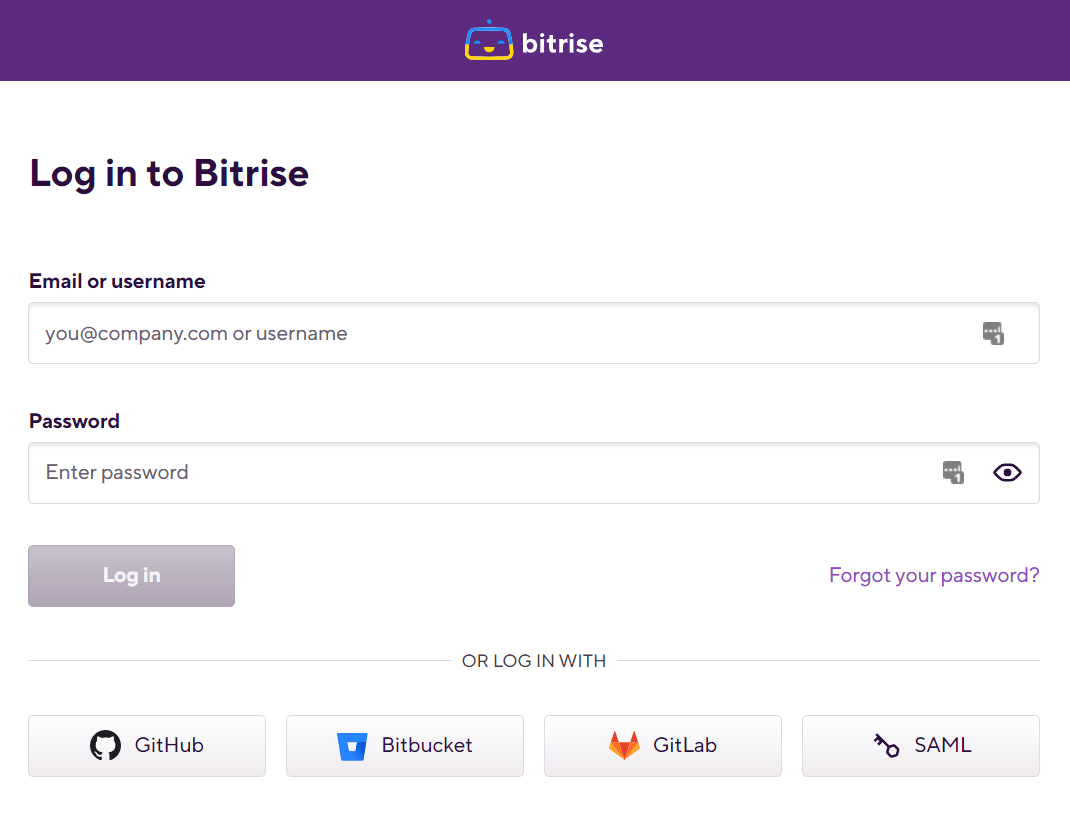
Go to the Bitrise login page and enter your email address and password, then click Log in.Cannot connect with an external authentication account (Google, SSO)
External authentication accounts such as Google or SSO cannot be used for integration.
How to Obtain the Workspace Key
-
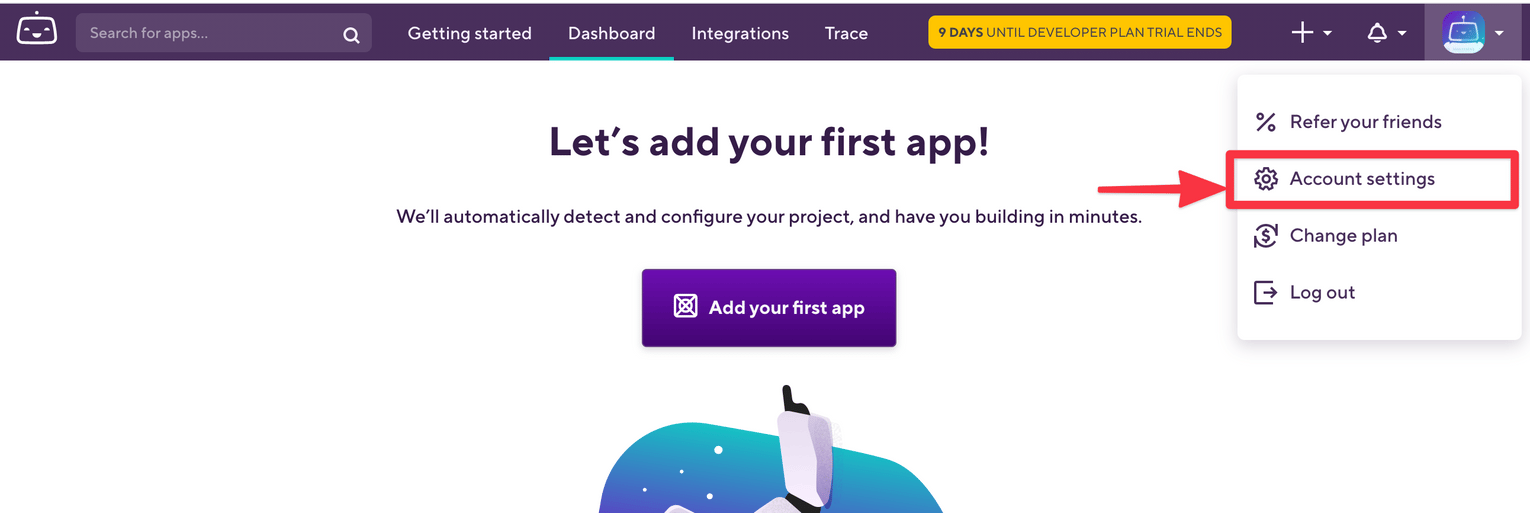
After logging in to Bitrise, go to Account Settings.
-
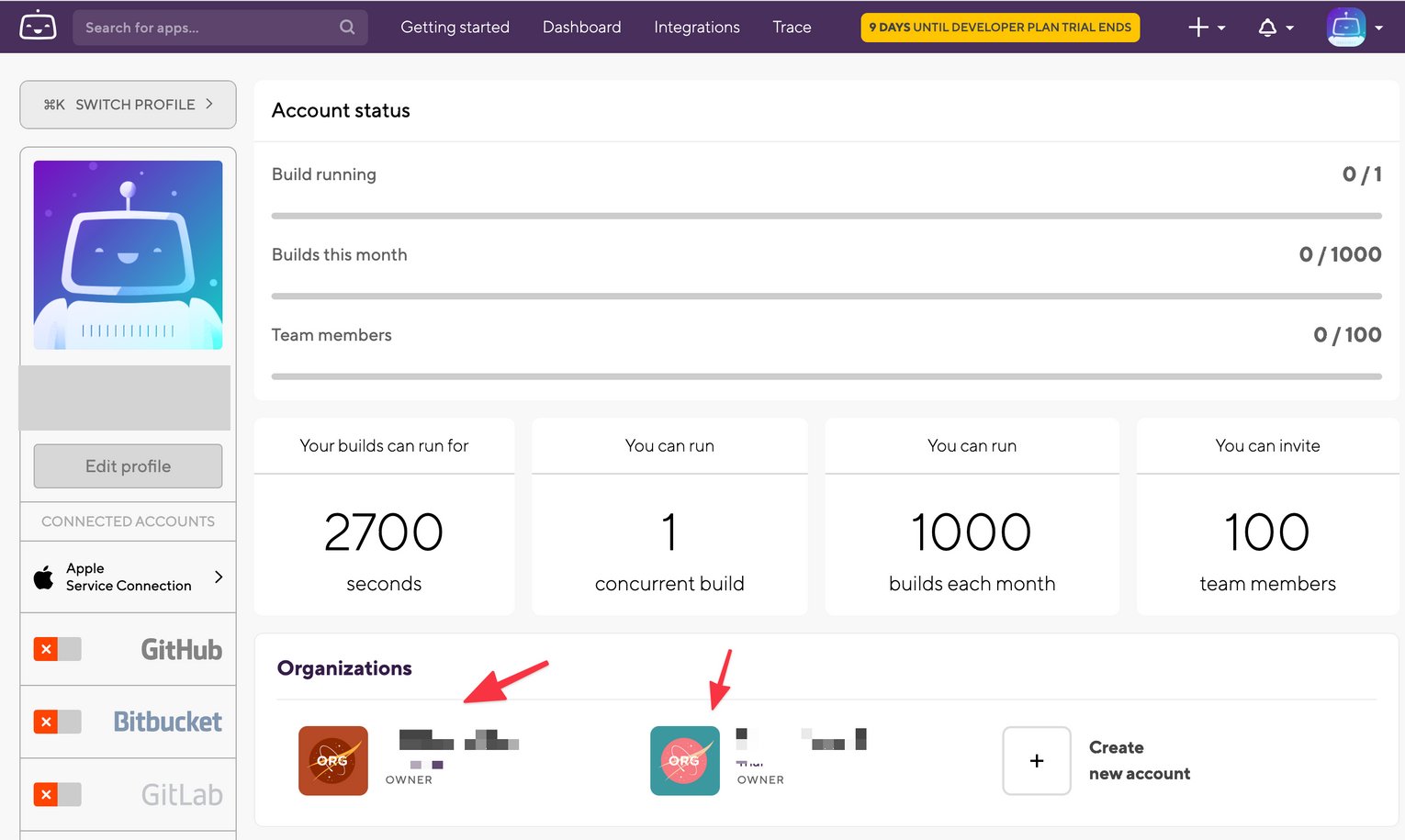
Select the Organization you want to integrate.
-
After selecting the Organization, part of the page URL is the workspace key. Save it for later use.
The trailing # is not needed.

Integration Setup
- On the integration screen, search for Bitrise and click on it.
-
Enter a workspace name of your choice (e.g., your company name) and the workspace key obtained in the previous step. Then enter the email address and password used to log in to Bitrise, and click Connect.
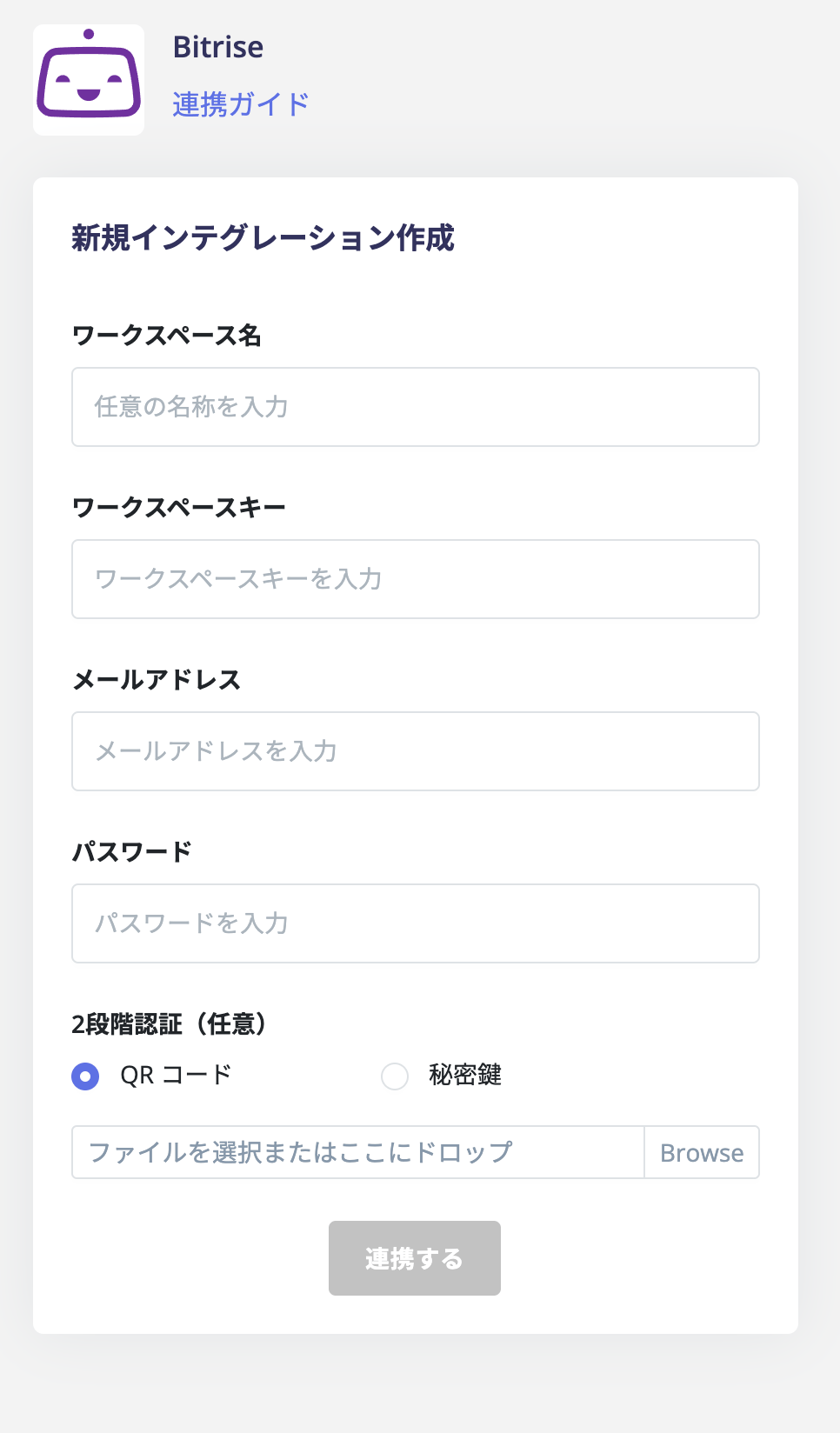
- Once the integration with Bitrise is successful, registered user information will appear in the account list. If the process does not complete successfully. Click Edit on the Status tab of the integration screen and try connecting again. If the issue persists, please contact us via chat.