After logging in to Aircall, click Integrations in the left navigation menu.
From the menu that appears, select API keys.
Click Generate API key.
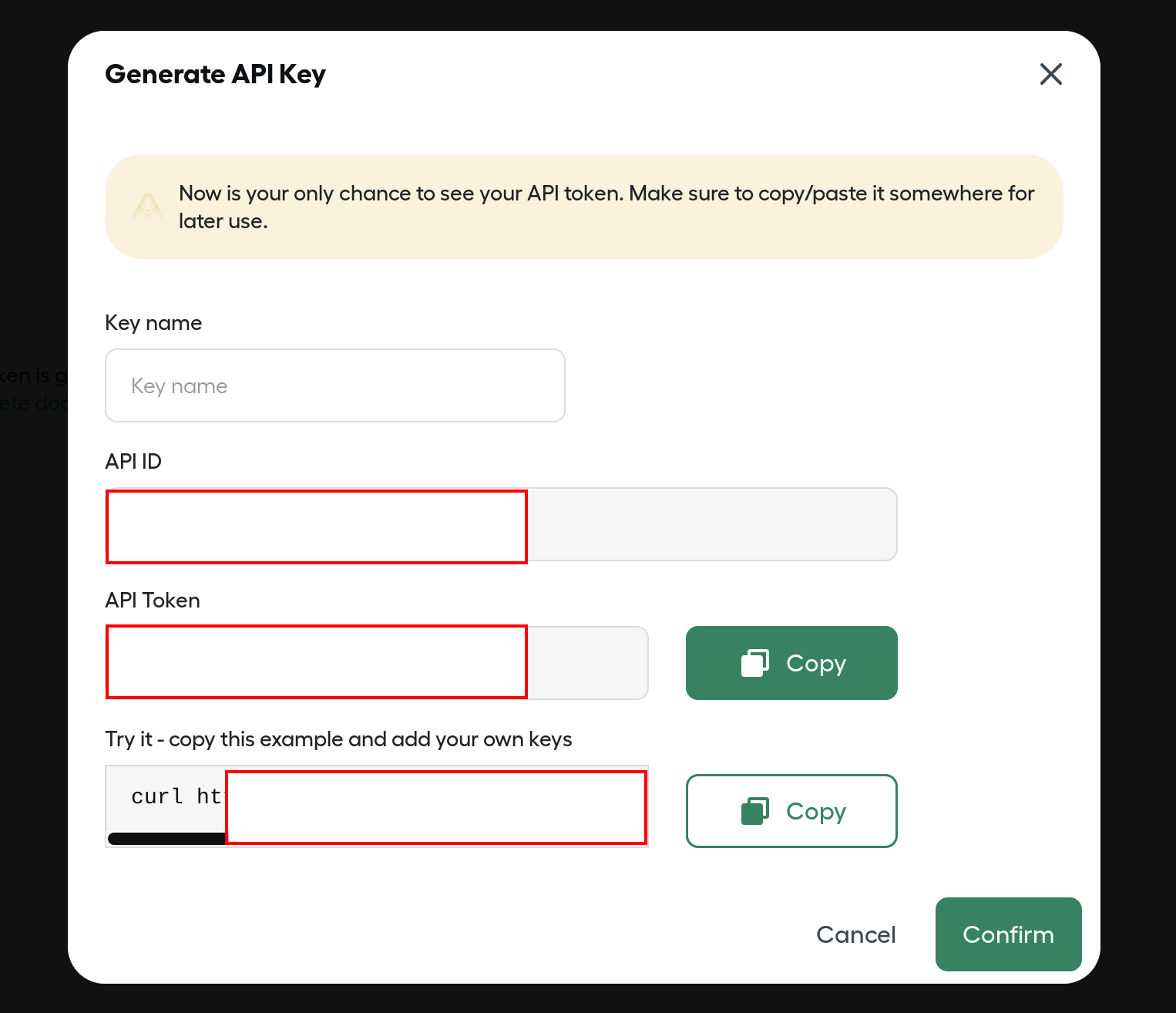
The Generate API Key dialog appears. Enter a key name, then copy and save the API ID and API Token shown, and click Confirm.
The API token is shown only on this screen, so be sure to save it now.
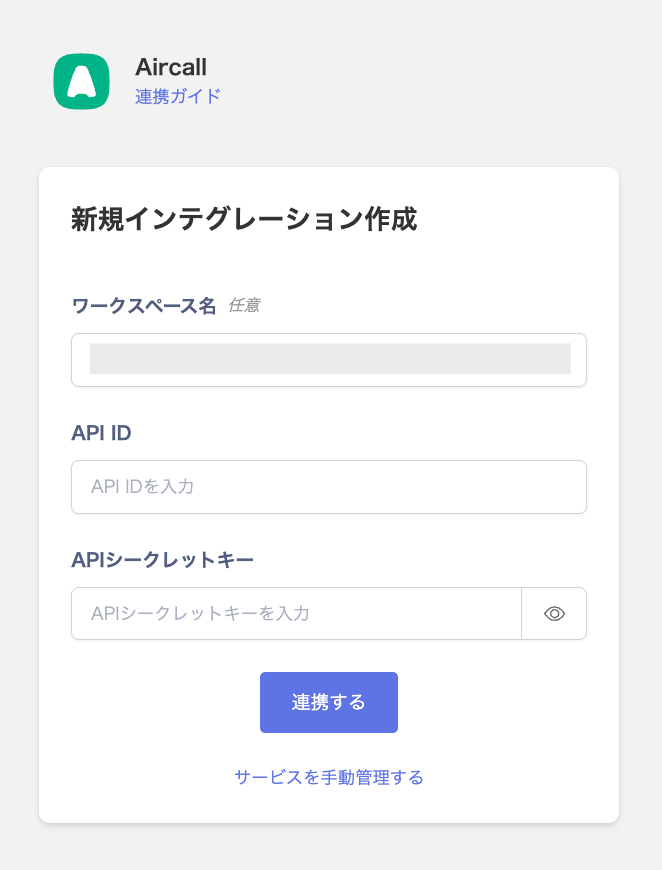
Enter the API ID and API secret key from the previous step, then click Connect.
Once the integration with Aircall succeeds, registered user information appears in the account list. If it doesn’t complete successfully, first try the steps in Troubleshoot SaaS integration errors. If that doesn’t resolve it, check Information to provide and contact support.