Integration Specifications
An Adobe Enterprise plan subscription is required for this integration.In Notes, “licenses in use” means licenses of users assigned to product profiles in the Adobe Admin Console. This includes users assigned through user groups. If a user’s license does not appear, check in the Adobe Admin Console that the user is assigned to a product profile.
Prerequisites
How to Log In to Adobe
Go to the Adobe login page, enter your email address and password, and log in.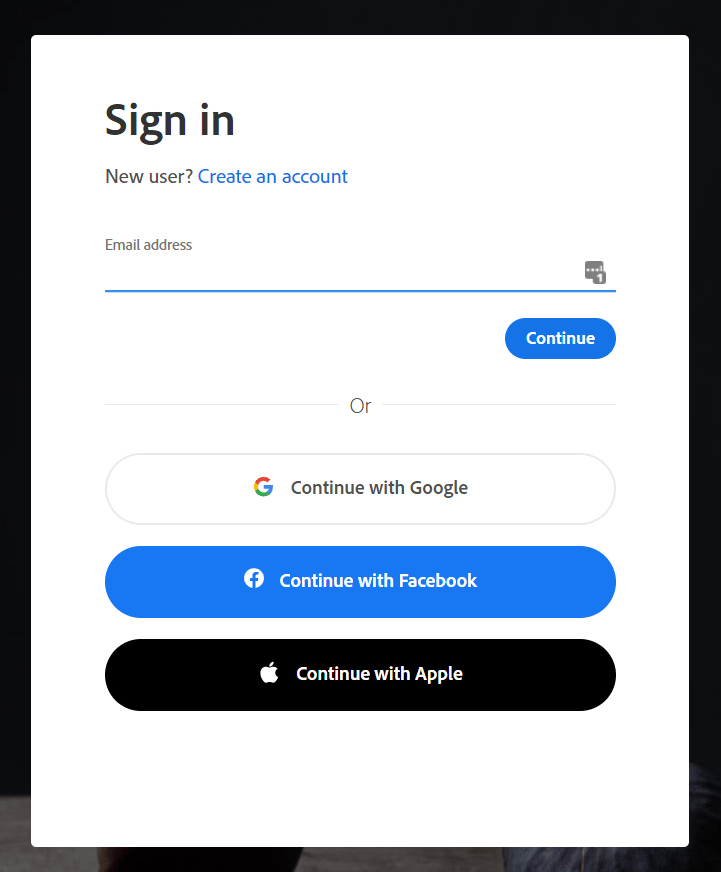
How to Obtain the API Key
-
After logging in to Adobe, go to Adobe Developer Console (developer.adobe.com/console) > Create new project. Then create a project.
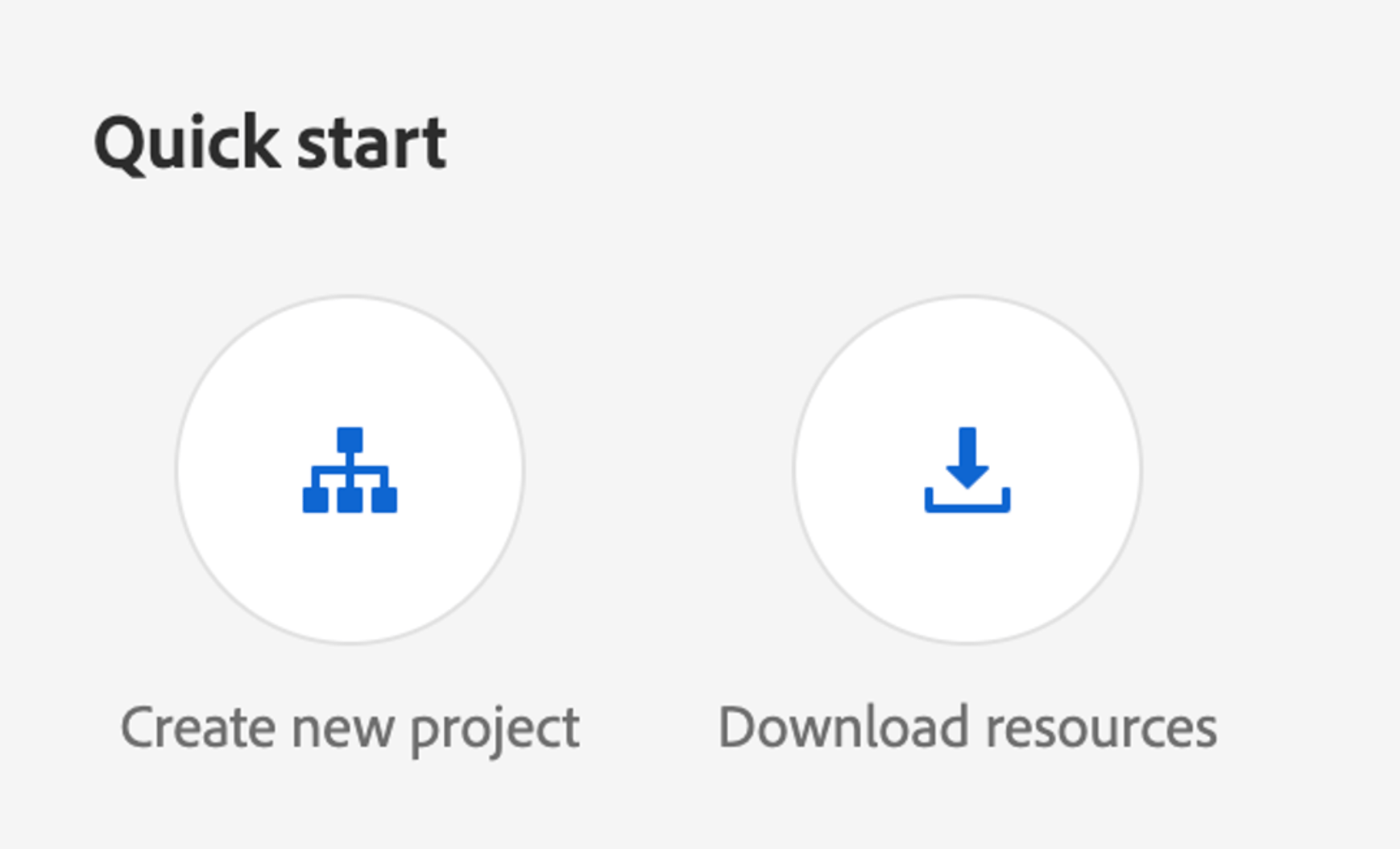 The project name will become the workspace name on this service, so choose a name that is easy to manage.
 -
Click Add API, select User Management API, and click the [Next] button.
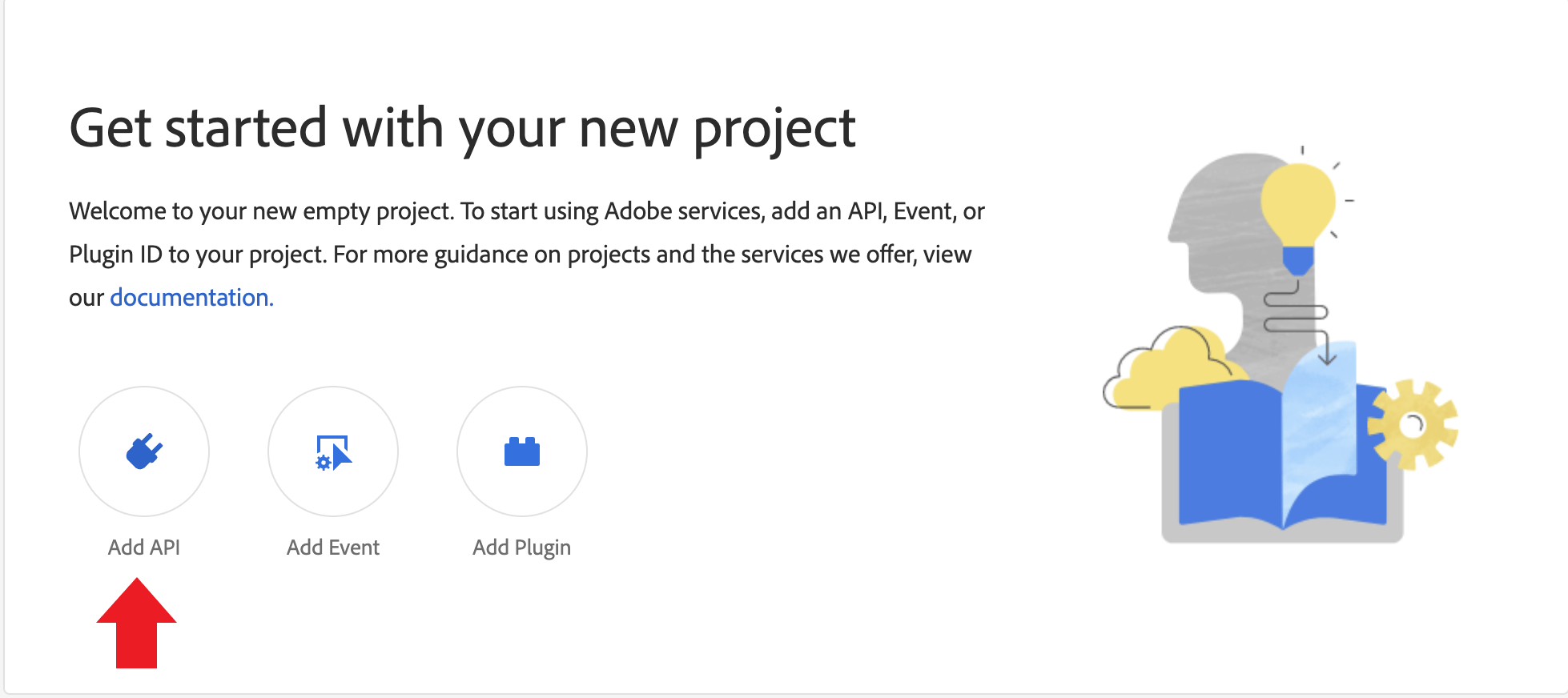
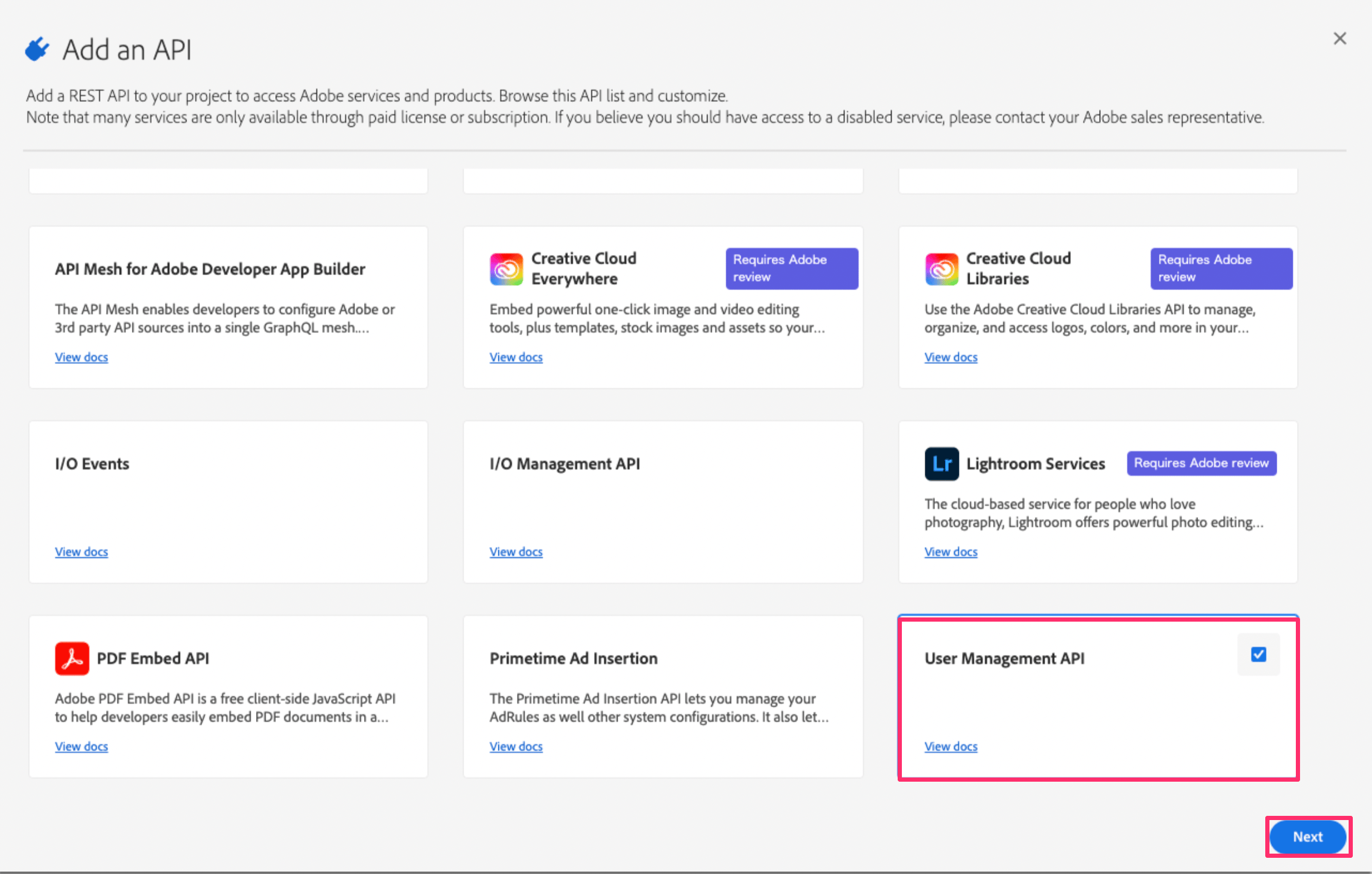 If you cannot select User Management API, you may not be on an Enterprise plan. Please check your subscription plan.
 -
Select OAuth Server to Server and click Save configured API.
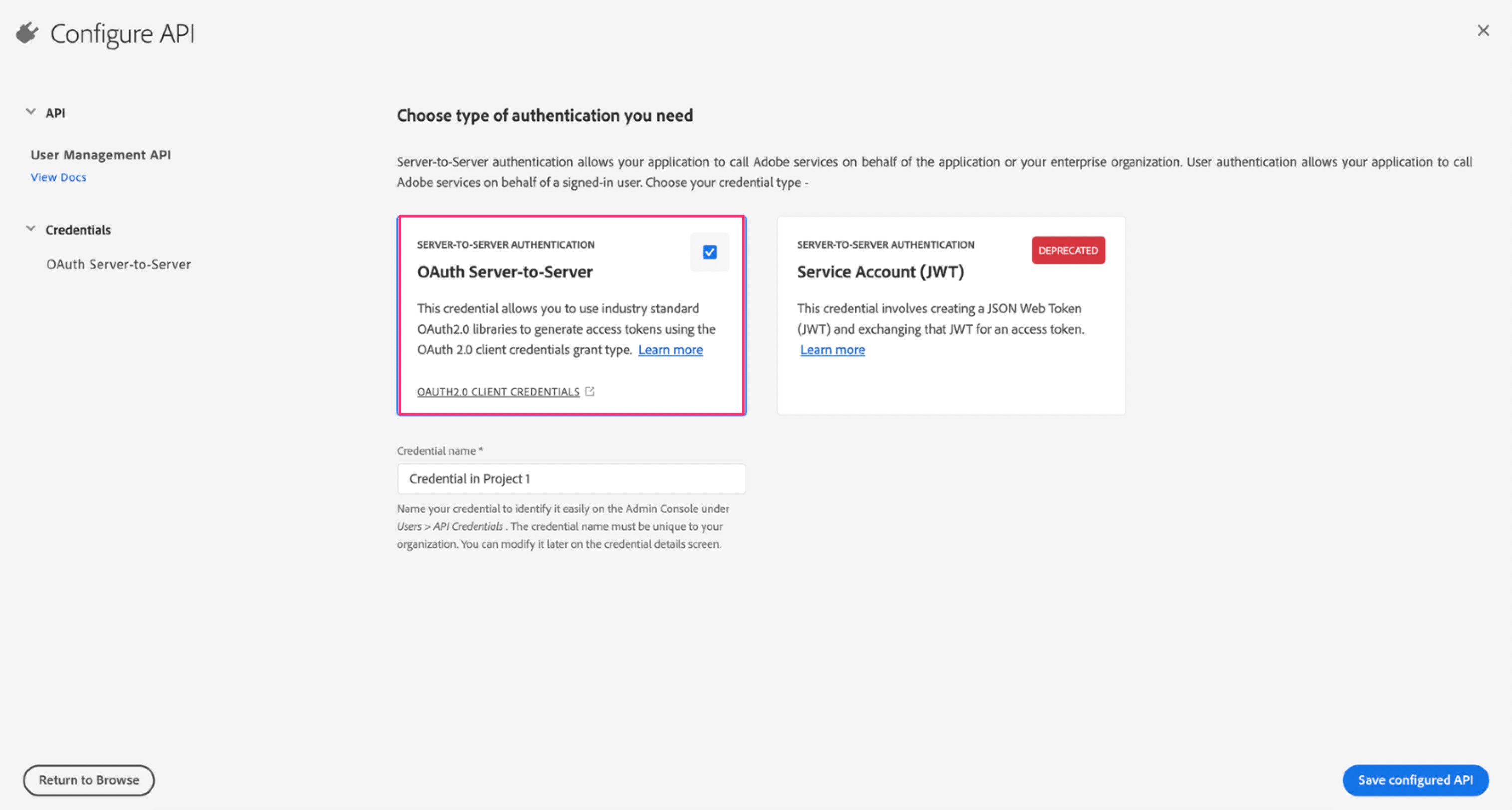
-
In the left menu, select
CREDENTIALS > OAuth Server-to-Server > Credential details.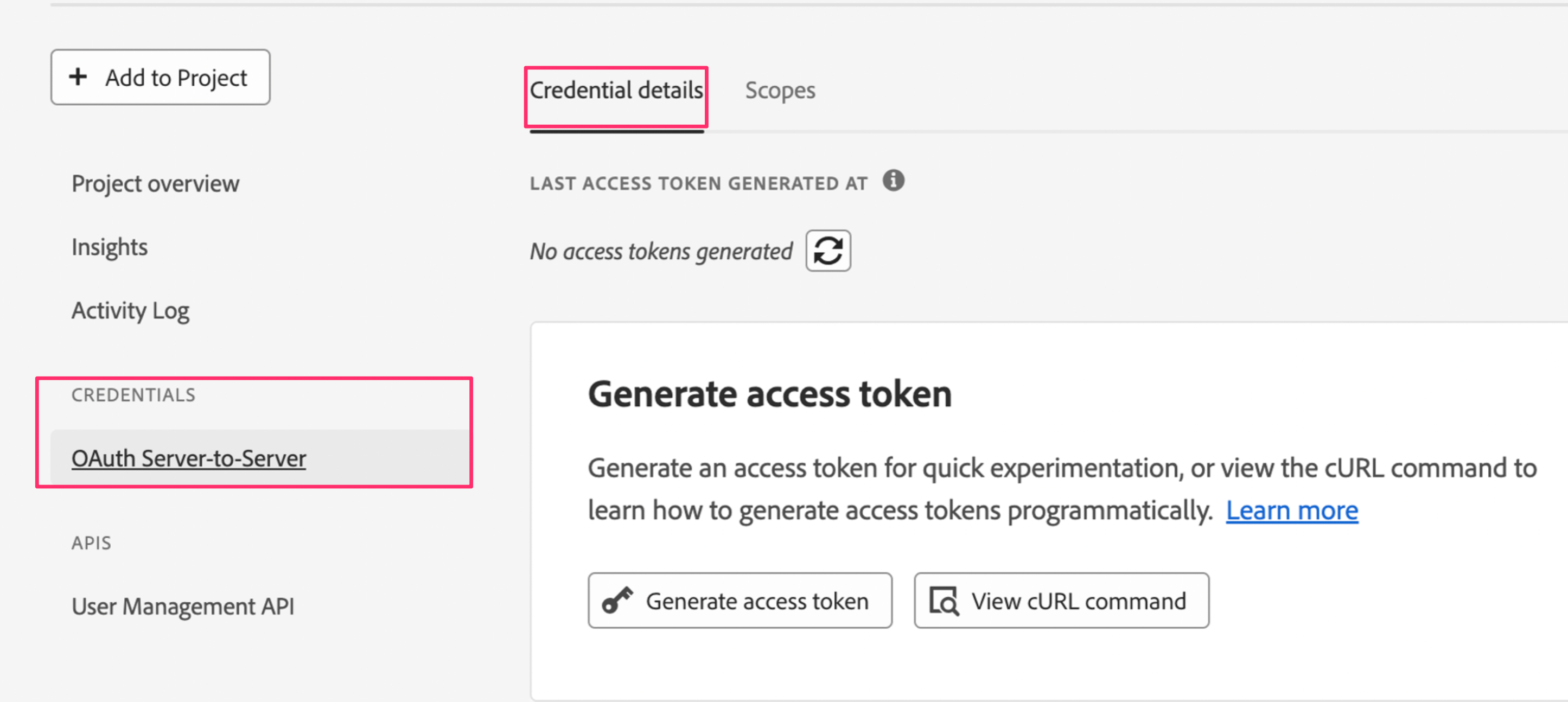
-
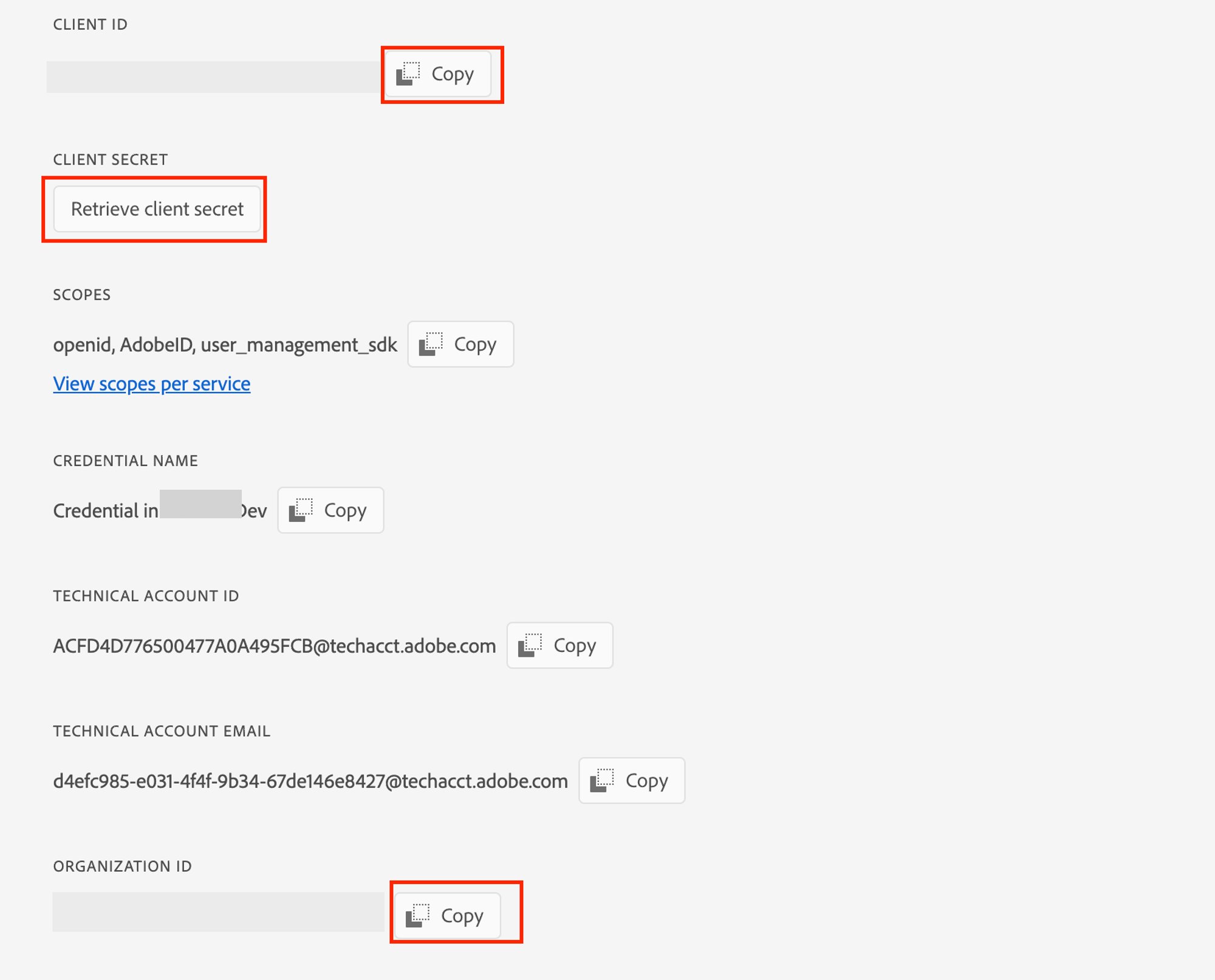
Copy the following items — these are your API keys:
- Client ID
- Client secret
- Organization ID
Integration Setup
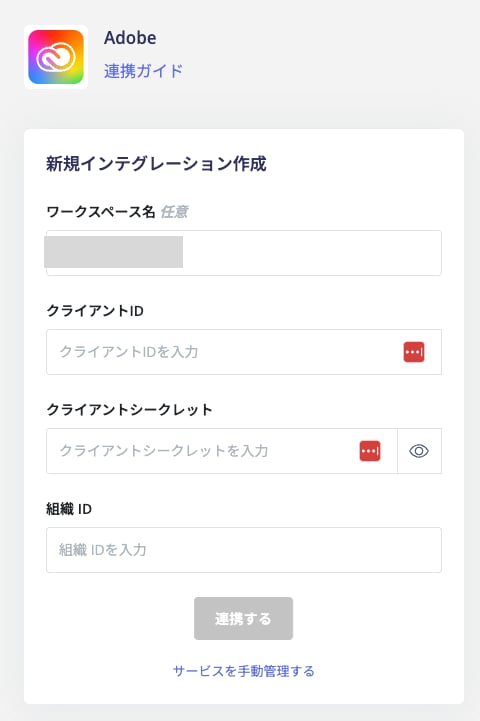
- In the integration screen, search for Adobe and click on it.
-
Enter the information obtained in the prerequisites and click Connect:
- Workspace name: Any name (e.g., your company name)
- Client ID: Client ID
- Client secret: Client secret
- Organization ID: Organization ID