

Integration Specifications
Advance Preparation
How to Login to Exment
Enter your email address (or user code) and password on the Exment login page to log in.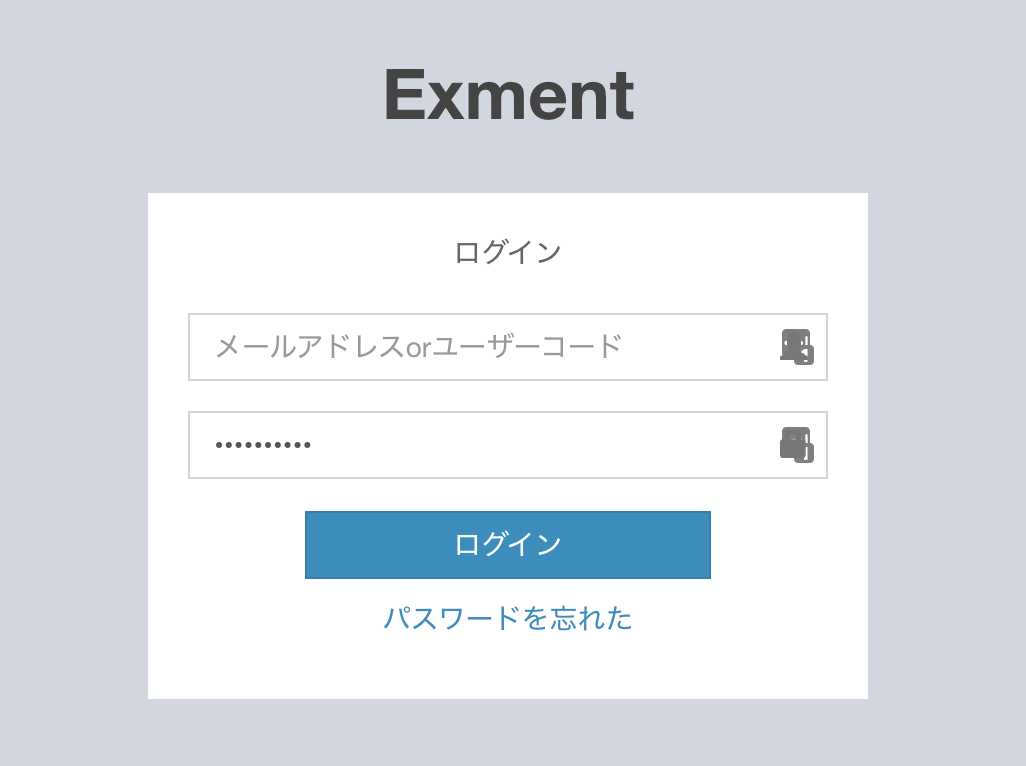
Getting Workspace Key
After Exment login, a portion of the URL will be saved as a workspace key. https://{workspacekey}.exment.net

Enable API Settings
To use the API with Exment, please refer to the following document to activate the API. Exment Documentation: API SettingsGetting Client ID and Client Secret
-
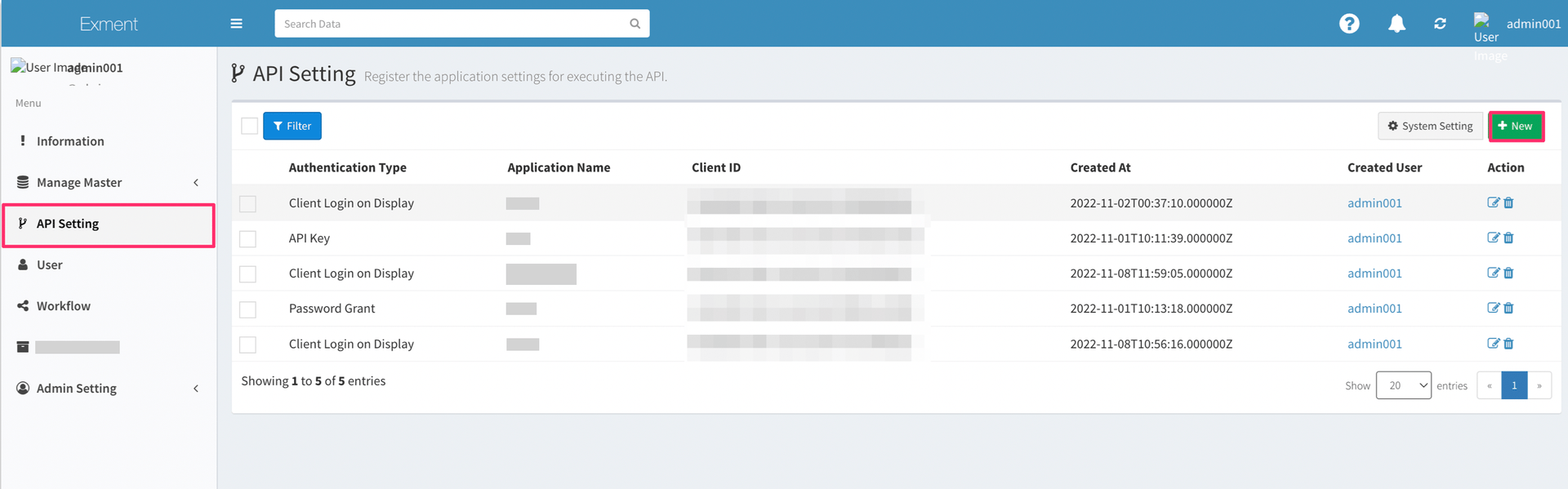
Go to API Settings on the Admin screen. Click the “New” button in the upper right corner.
-
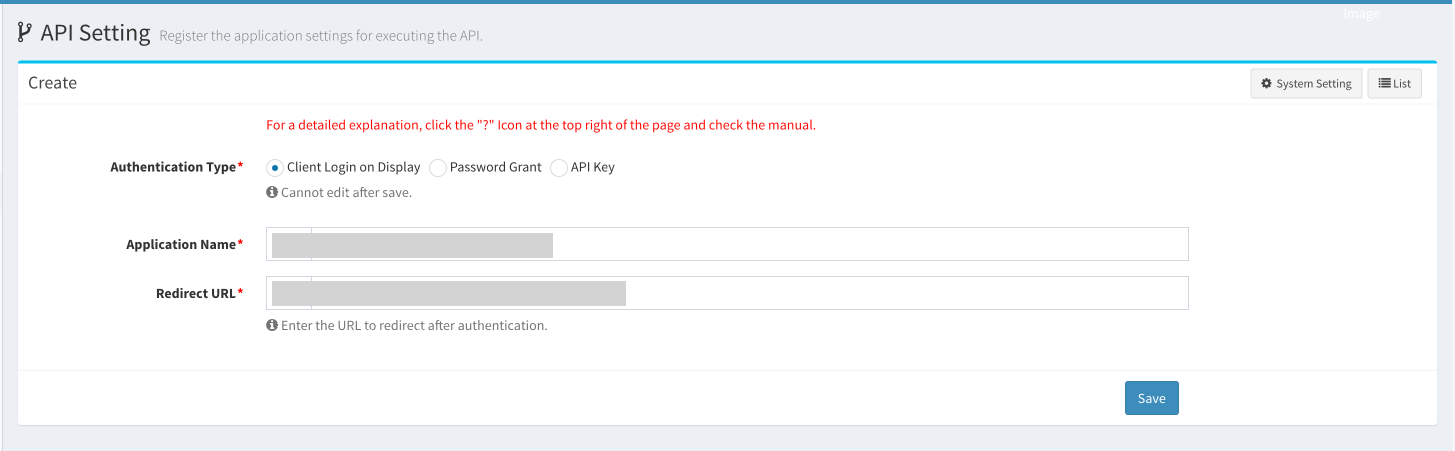
Create an API key. Enter the following information and click Save.
- Authentication Type:
Client Login on Display - Application Name:
Moneyforward IT Management Cloud - Redirect URL:
https://itmc.i.moneyforward.com/oauth/callback
- Authentication Type:
-
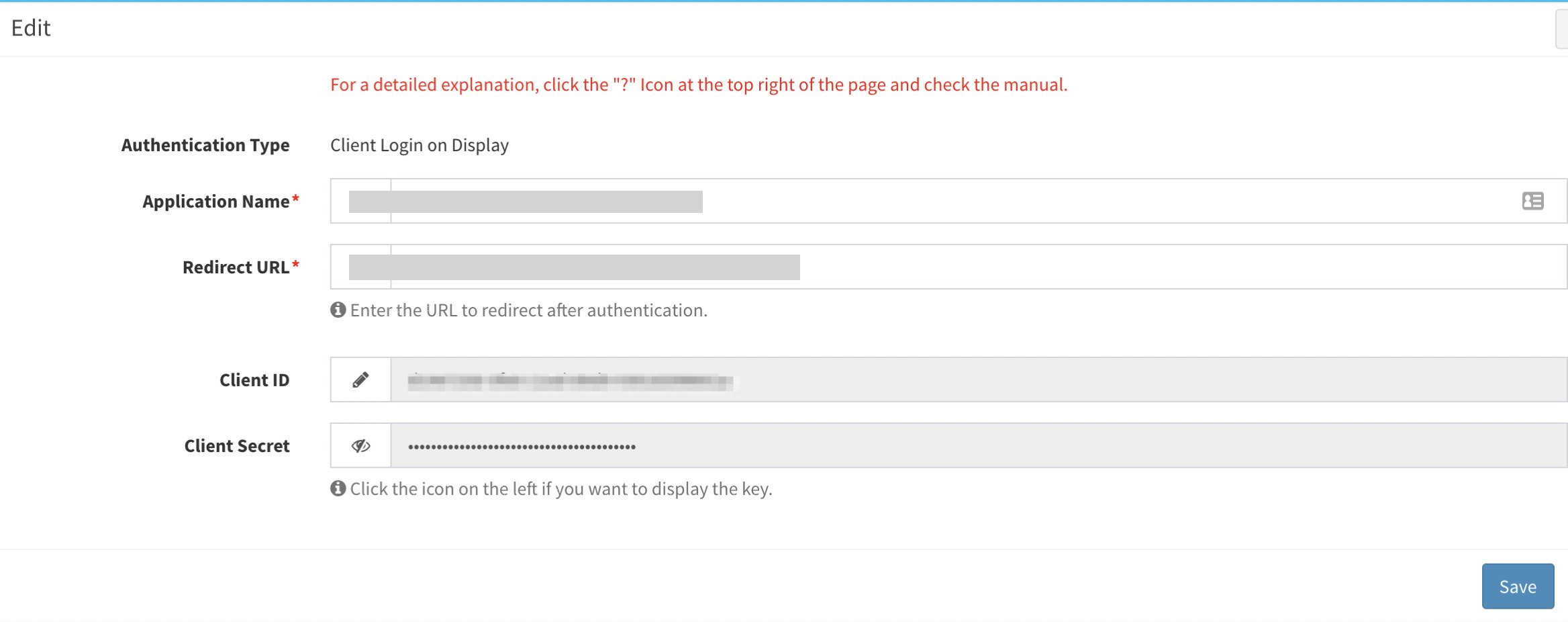
The Client ID and Client secret will be displayed. Copy and save each of them. (Copying is possible even after the screen is closed.)
Integration Setup
- Search for Exment in the Integration menu.
-
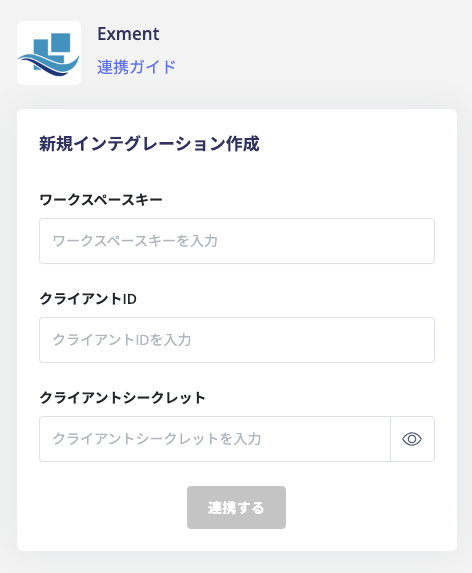
Enter the workspace key, client ID, and client secret obtained in the previous step, and click Integrate.
- If the integration with Exment is successful, the registered user information will appear in the account list. If the integration does not complete successfully, edit the information from the status tab on the integration screen. Then try again. If the problem persists, please contact us via chat.