

Integration Specifications
Prerequisites
How to Log In to CrowdStrike
Go to the CrowdStrike Falcon platform login page and log in with your email address and password.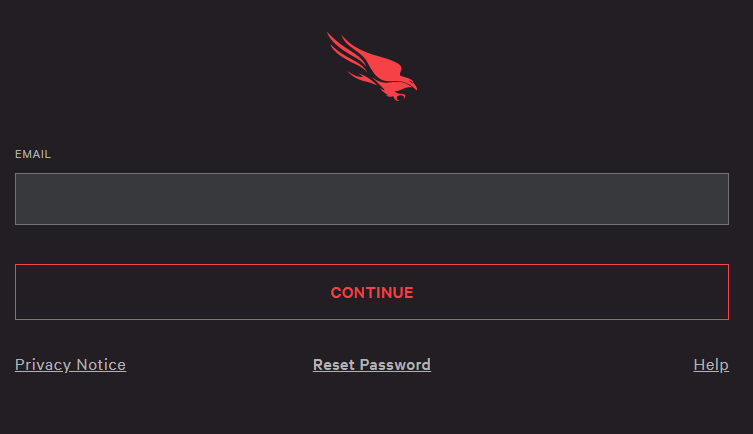
How to Obtain the Base URL, Client ID, and Client Secret
-
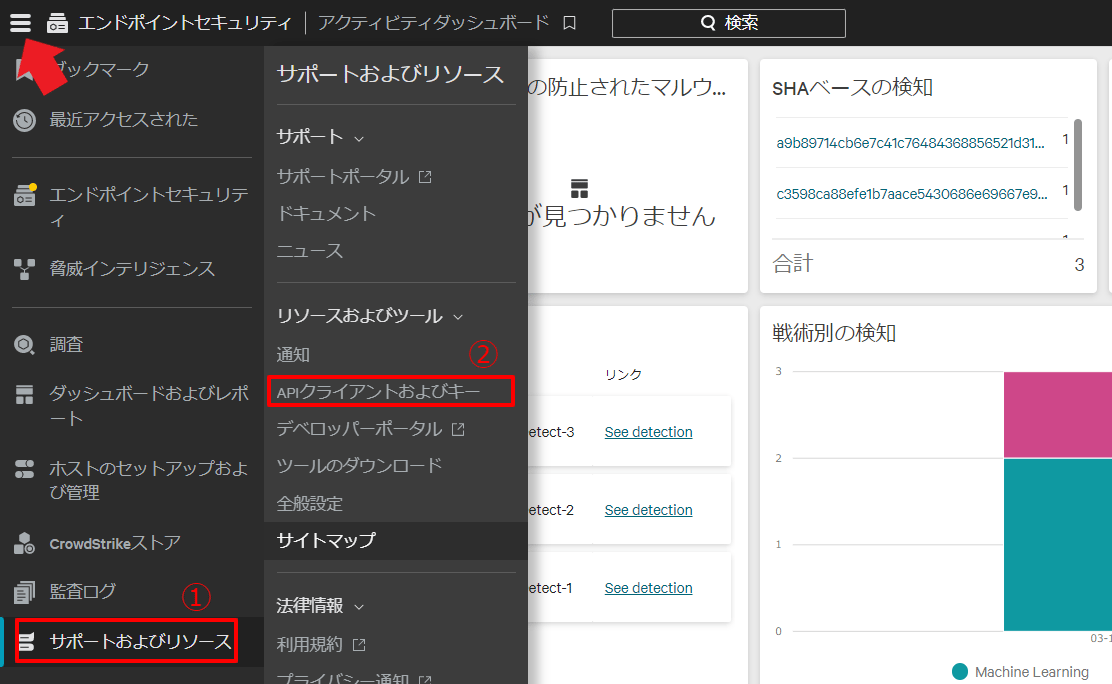
After logging in to CrowdStrike, click the menu icon in the upper left corner. Navigate to Support and resources > API clients and keys from the side menu.
-
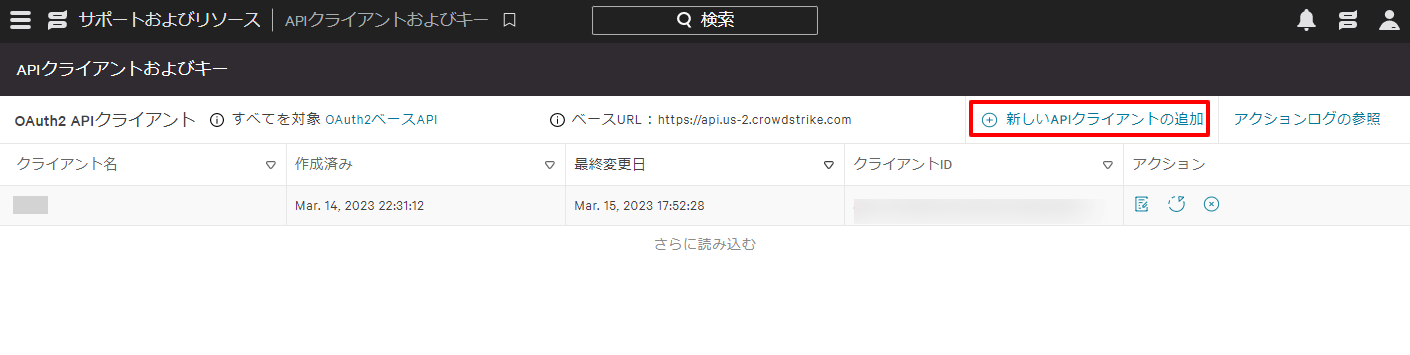
Click Add new API client.
-
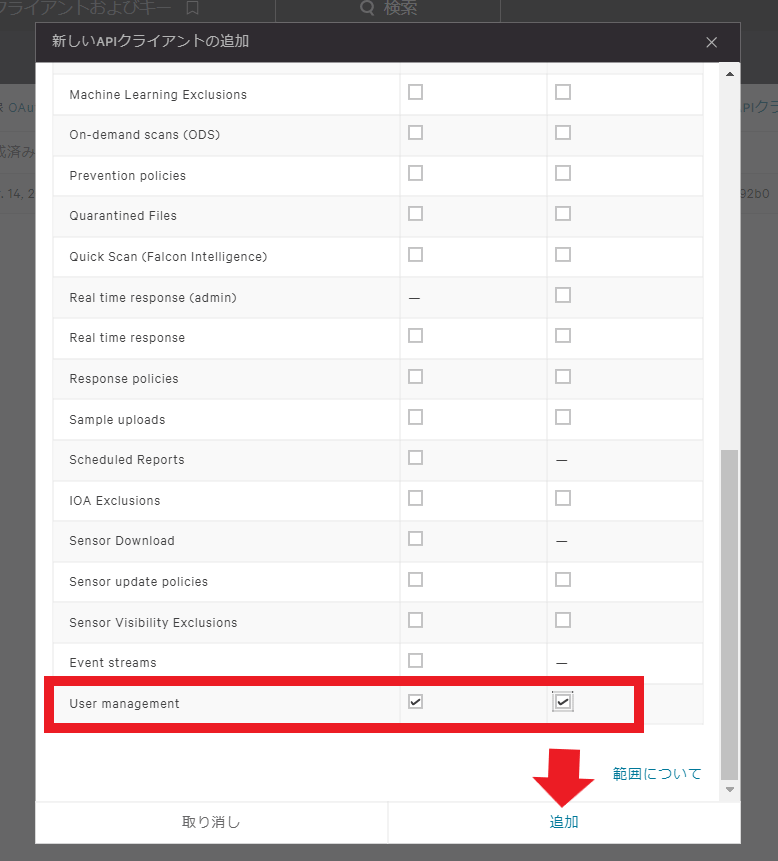
Enter any name for the client name (such as your department name or intended use). Then check both Read and Write for User management, and click Add.
-
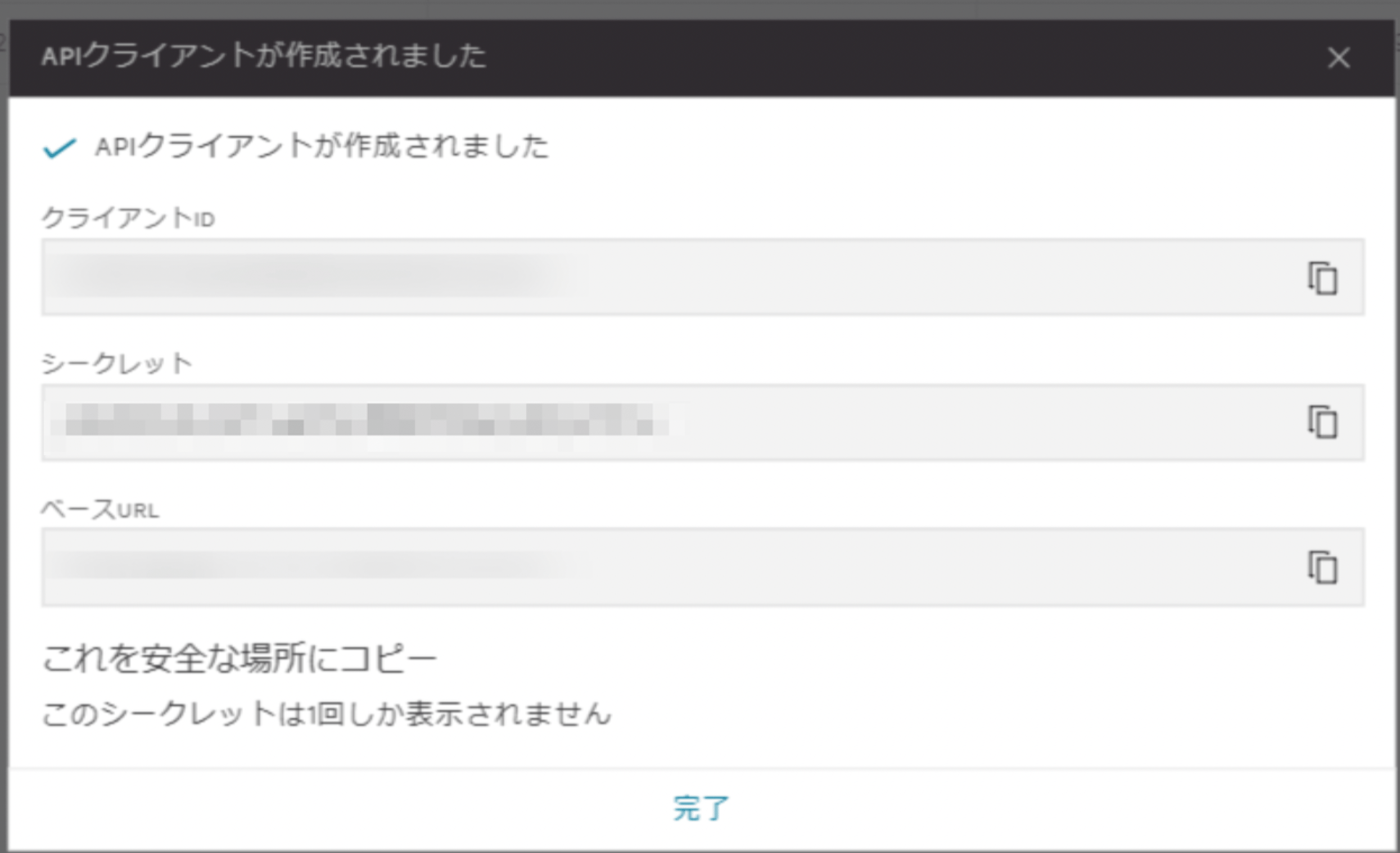
The Client ID, Secret (Client Secret), and Base URL will then be displayed. Copy and save them.
The secret cannot be displayed again, so be sure to save it.
Integration Setup
- In the integrations screen, search for CrowdStrike.
-
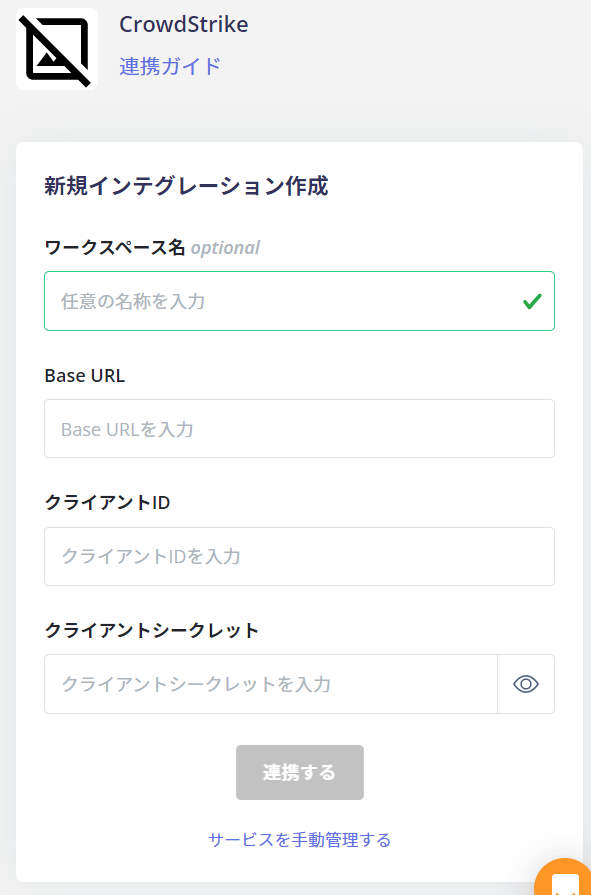
Enter any workspace name, along with the Base URL, Client ID, and Client Secret obtained in the previous steps. Then click Connect.
- Once the integration with CrowdStrike is successful, the registered user information will be displayed. It appears in the account list.
- If the process does not complete successfully. Edit the integration from the Status tab on the integrations screen and try again. If the issue persists, please contact us via chat.
After you connect, Admina cannot sync if you delete the API client or regenerate its secret in API clients and keys in CrowdStrike. In that case, perform a re-integration with the Base URL, Client ID, and Client Secret of a valid API client.