Integration Specifications

Prerequisites

How to obtain the workspace key (Website ID)

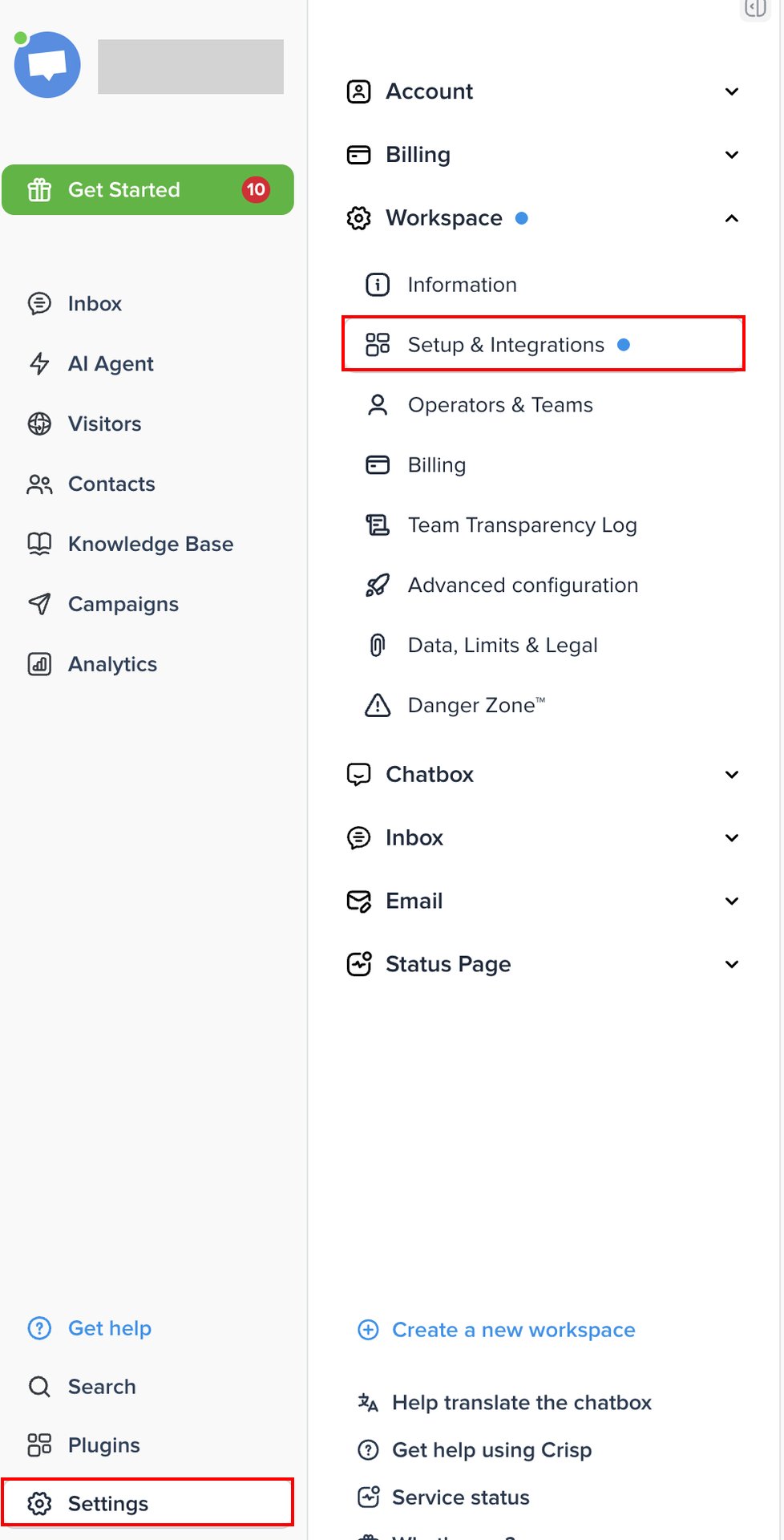
  1. Log in to Crisp and select Settings in the left menu. Then select Setup & Integrations under Workspace. The Crisp settings menu with Settings and Setup & Integrations under Workspace
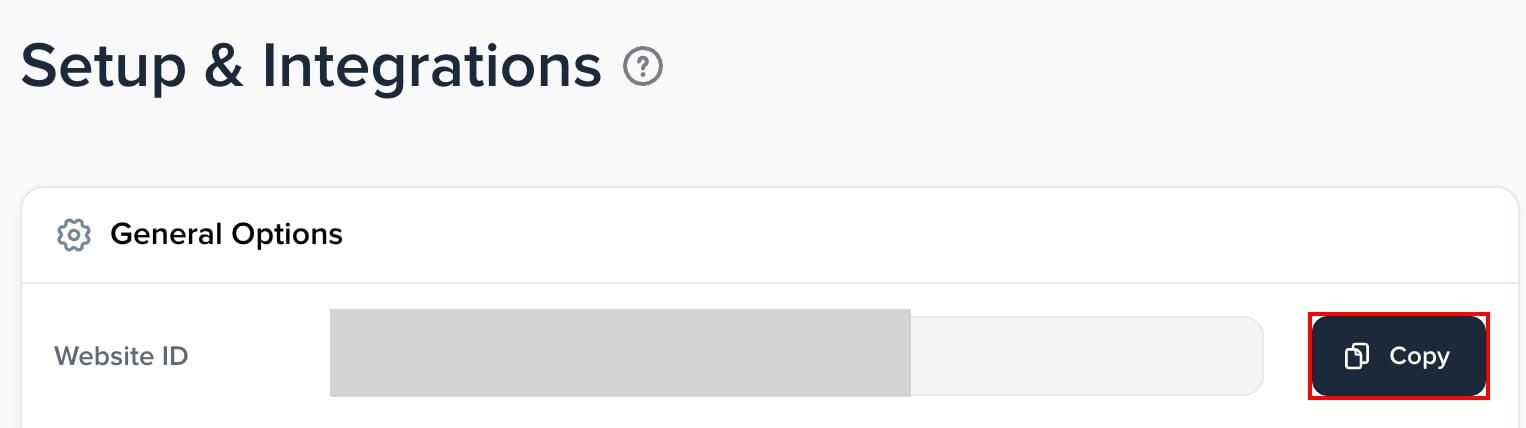
  2. Under General Options, click Copy next to Website ID to copy it, and save it. The Crisp Setup & Integrations page with the Website ID and the Copy button

How to obtain the token ID and token secret

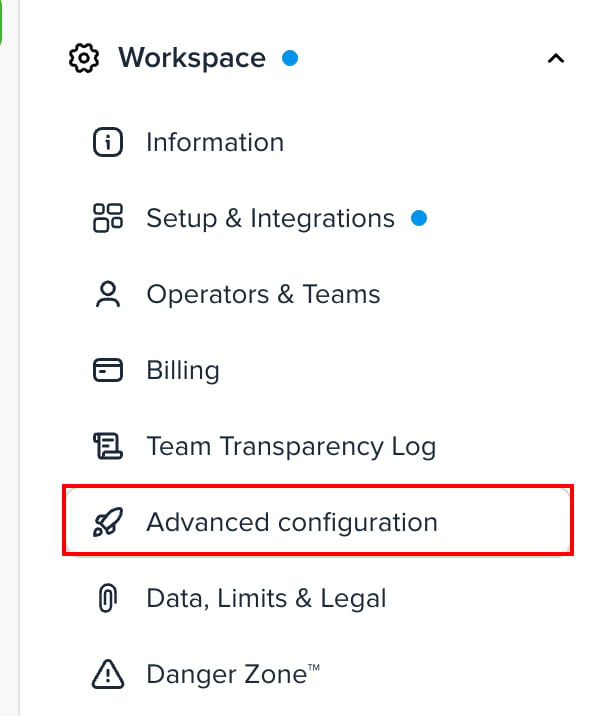
  1. Select Advanced configuration under Workspace. The Crisp settings menu with Advanced configuration under Workspace
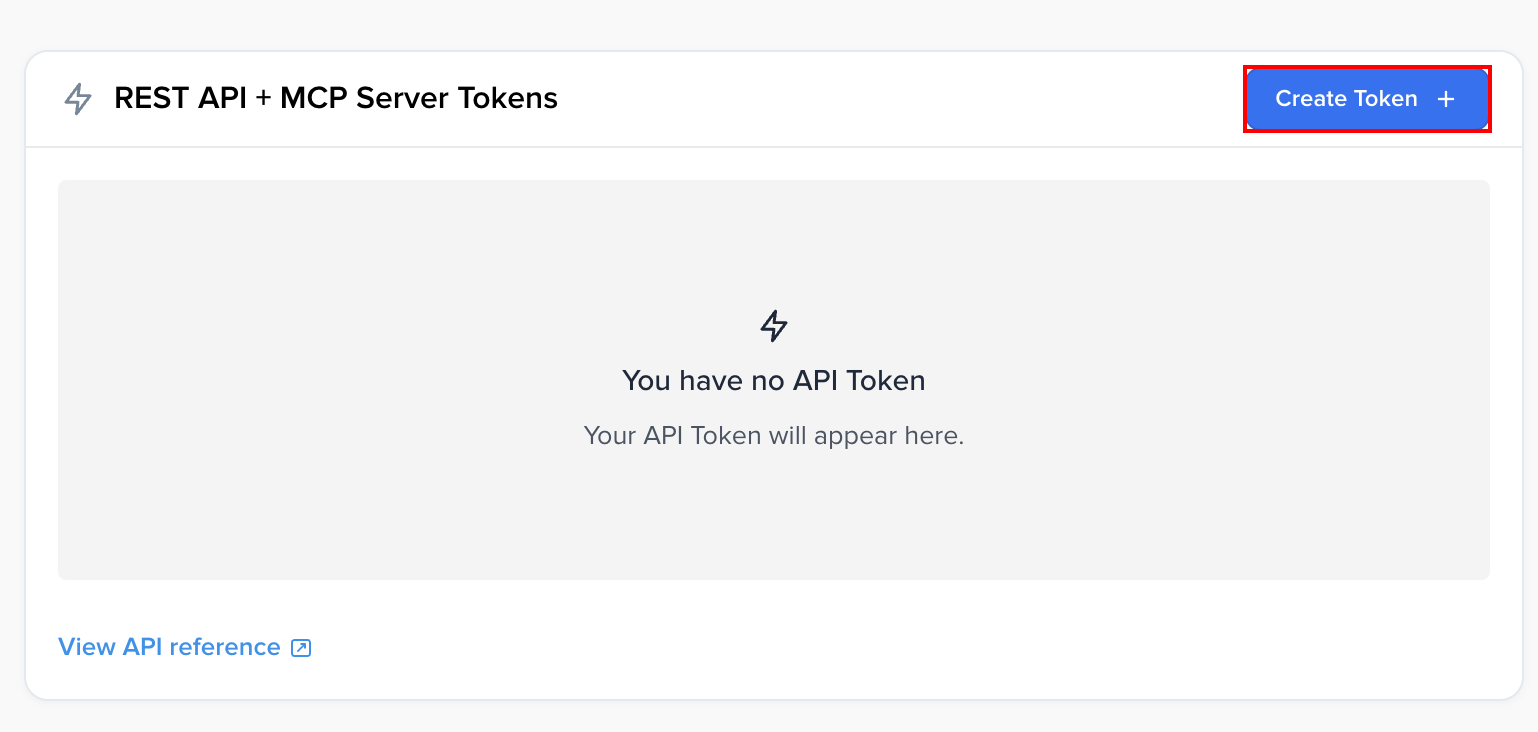
  2. Under REST API + MCP Server Tokens, click Create Token. The Crisp Advanced configuration page with the Create Token button under REST API + MCP Server Tokens
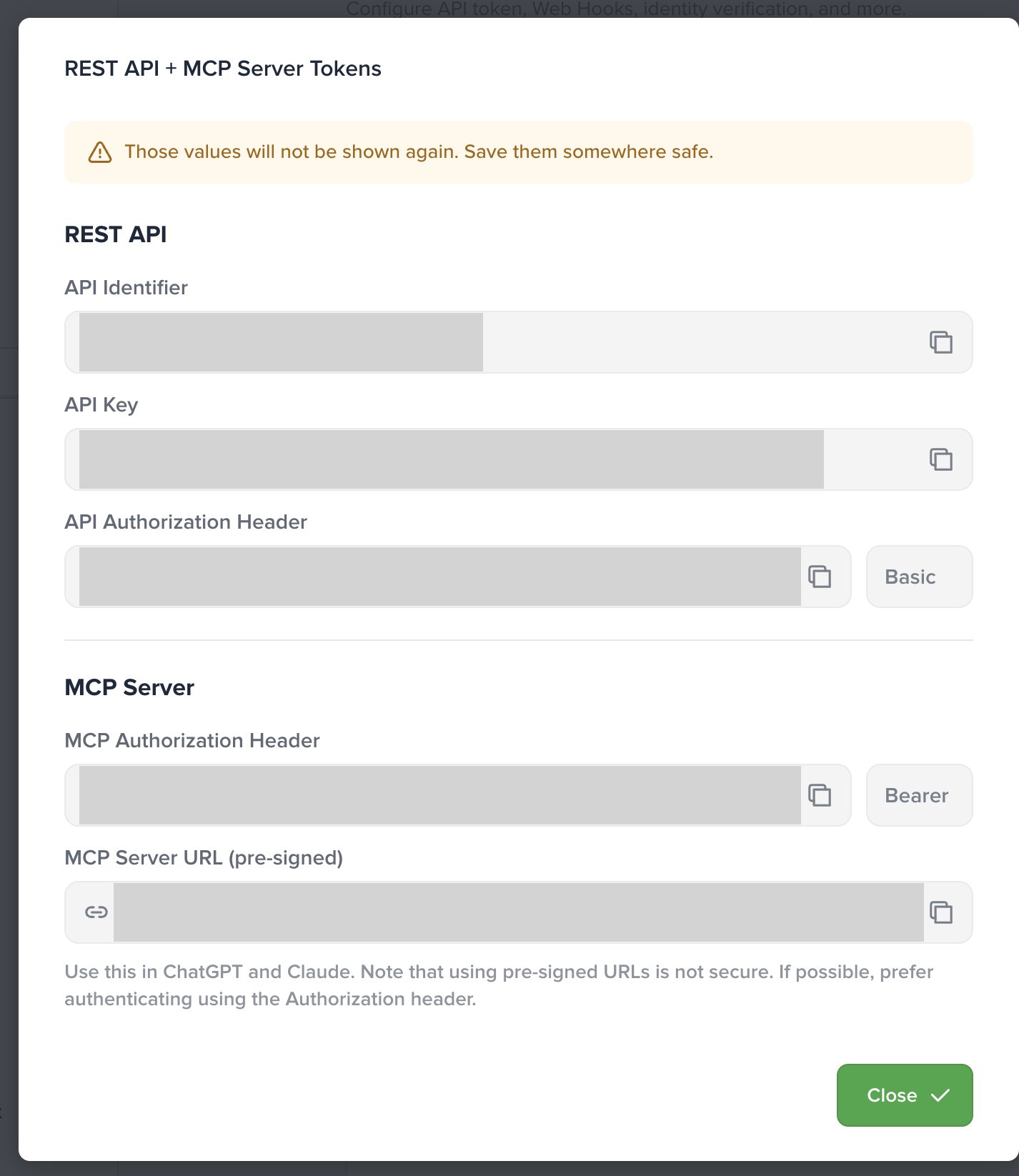
  3. Copy the API Identifier and API Key that appear, and save them. These values appear only once, so save them right away. The Crisp REST API + MCP Server Tokens screen with the API Identifier and API Key

Setting up the integration

  1. In the integration screen, search for Crisp.
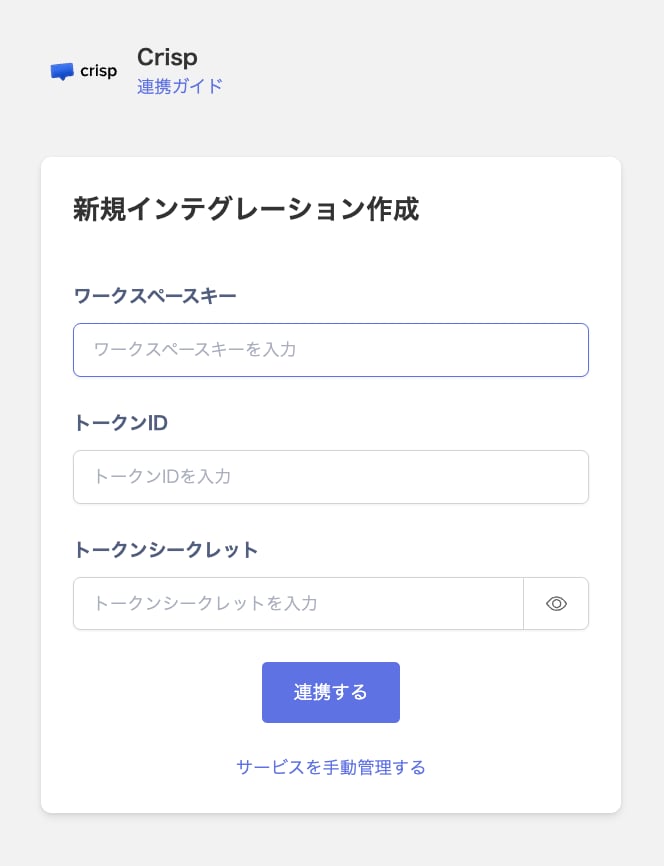
  2. Enter the Website ID in Workspace key, the API Identifier in Token ID, and the API Key in Token Secret. Then click Integrate. The Crisp integration screen with the workspace key, token ID, and token secret fields
  3. When the integration with Crisp succeeds, registered user information appears in the account list. If it does not complete successfully, first try the steps in Troubleshoot SaaS integration errors. If the issue persists, check Information to provide and contact Support.

Last modified on October 7, 2026