This section describes a series of steps from administrator login to dbt Cloud from Admina by Money Forward to the integration method.

Advance Preparation

How to log in to dbt Cloud

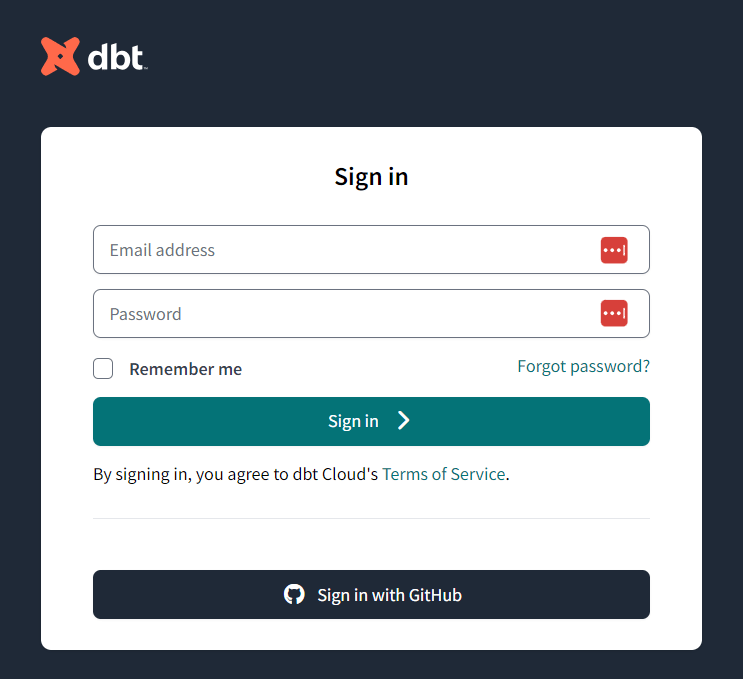
Enter your email address and password on the dbt Cloud login page to log in. dbt Cloud login screen

How to get a workspace key

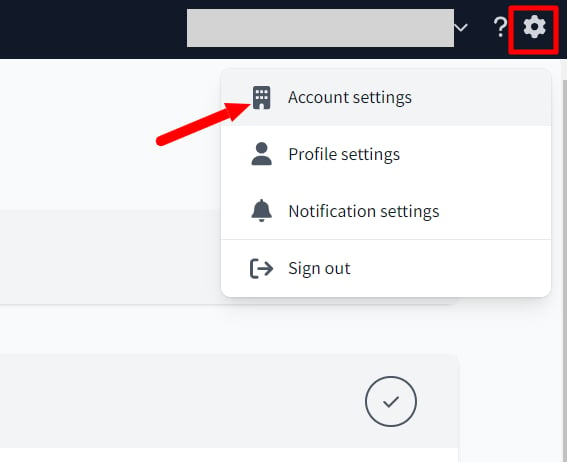
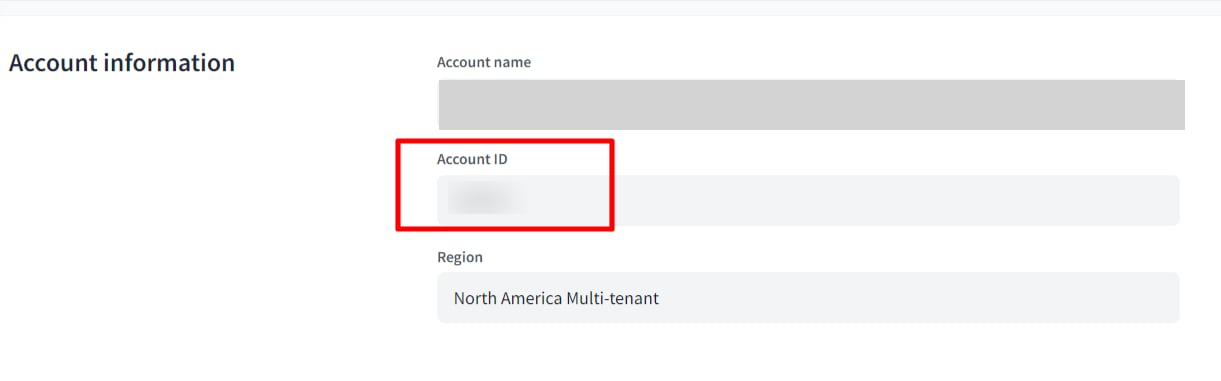
After logging in to dbt Cloud, go to Settings ⚙ > Account settings > Account. Account settings screen The Account ID will be your workspace key, so copy and save it. Account ID display screen

How to get the access key

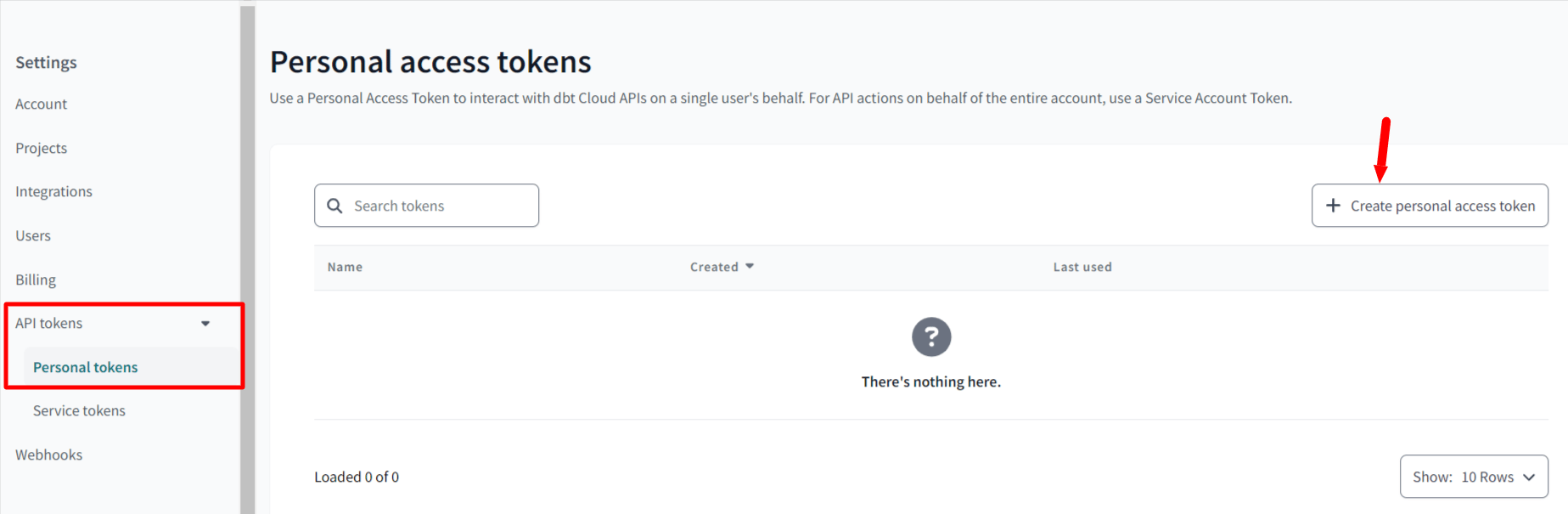
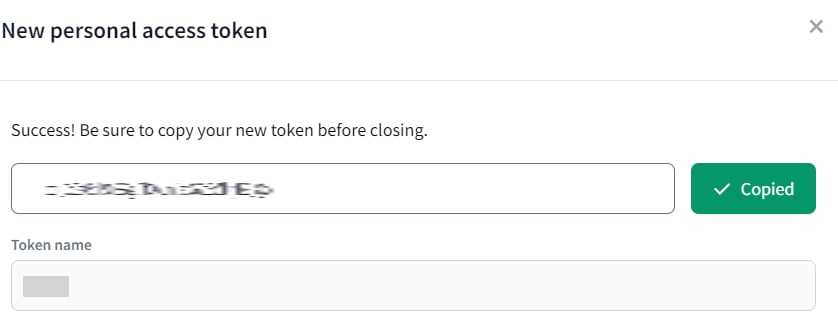
Go to Settings > API tokens > Personal tokens and click +Create personal access token. Personal tokens screen Enter any name (purpose, department name, etc.) and click SAVE to display the API token. The API token will be your access key, so copy and save it. API token display screen

Setting up the integration

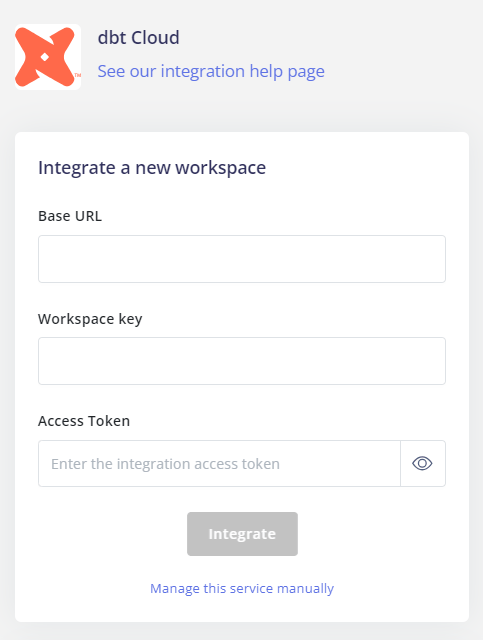
Search for dbt Cloud on the Money Forward Admina integration screen. Admina integration search screen Enter the Base URL, workspace key and access key obtained in the previous step, and click Connect. Please select the Base URL from below. Please check your current website URL to determine which Base URL to use.
  • https://cloud.getdbt.com
  • https://emea.dbt.com
  • https://au.dbt.com
  • https://{account_prefix}.us1.dbt.com
Integration settings screen If the link with dbt Cloud is successful, registered user information will be displayed in the account list. If it does not complete successfully, please edit from the status tab on the integration screen and try the integration again. If the problem is not resolved, please contact us via chat 🙏

Last modified on April 27, 2026