This service integration is currently suspended. Please refer to the Help section in the admin console for details.
Supported Features
Account Provisioning Account DeactivationPrerequisites
How to Log In to Twilio
Go to the Twilio login page, enter your email address and password, and log in.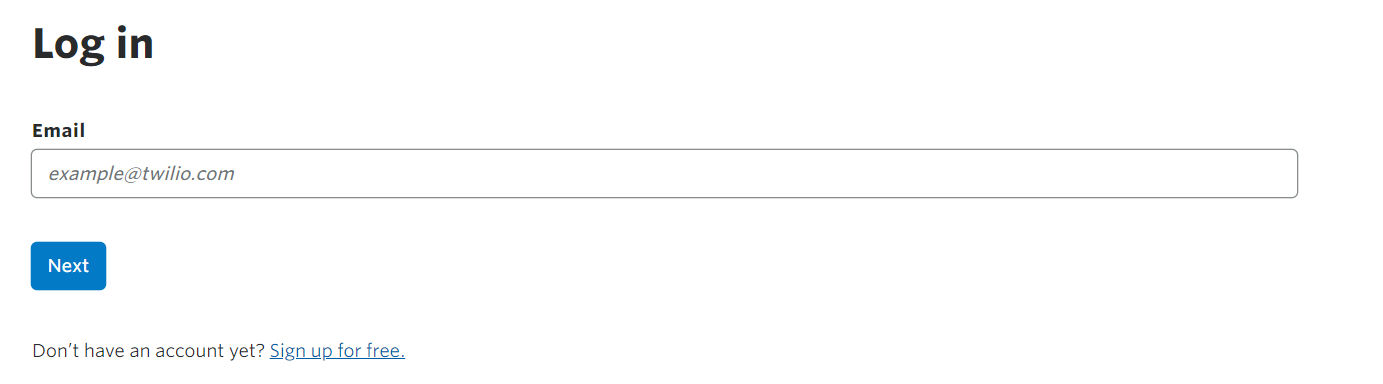
How to Set Up Two-Factor Authentication
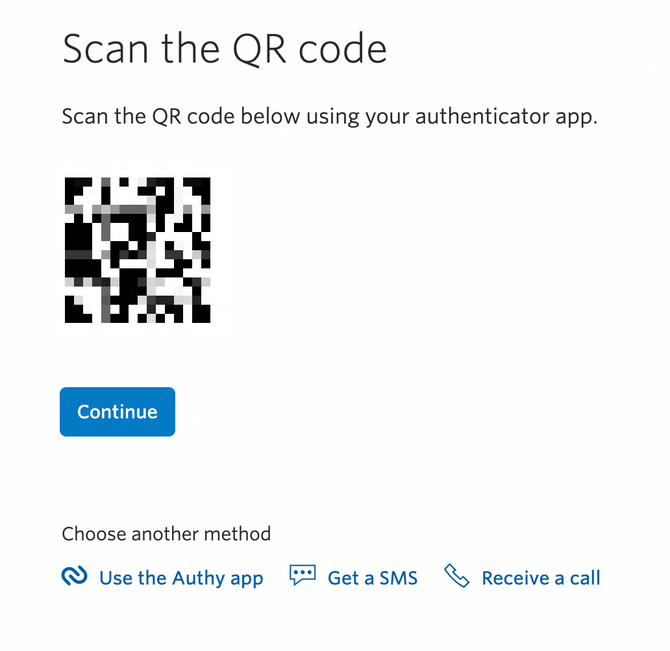
After logging in to Twilio, go to User Settings. Change the Two-Factor Authentication (2FA) Method to Another authenticator app and click Update 2FA Methods.
How to Obtain the Workspace Key
Go to the Dashboard, where the Account SID is displayed under Project info. The Account SID is your workspace key. Save it for later.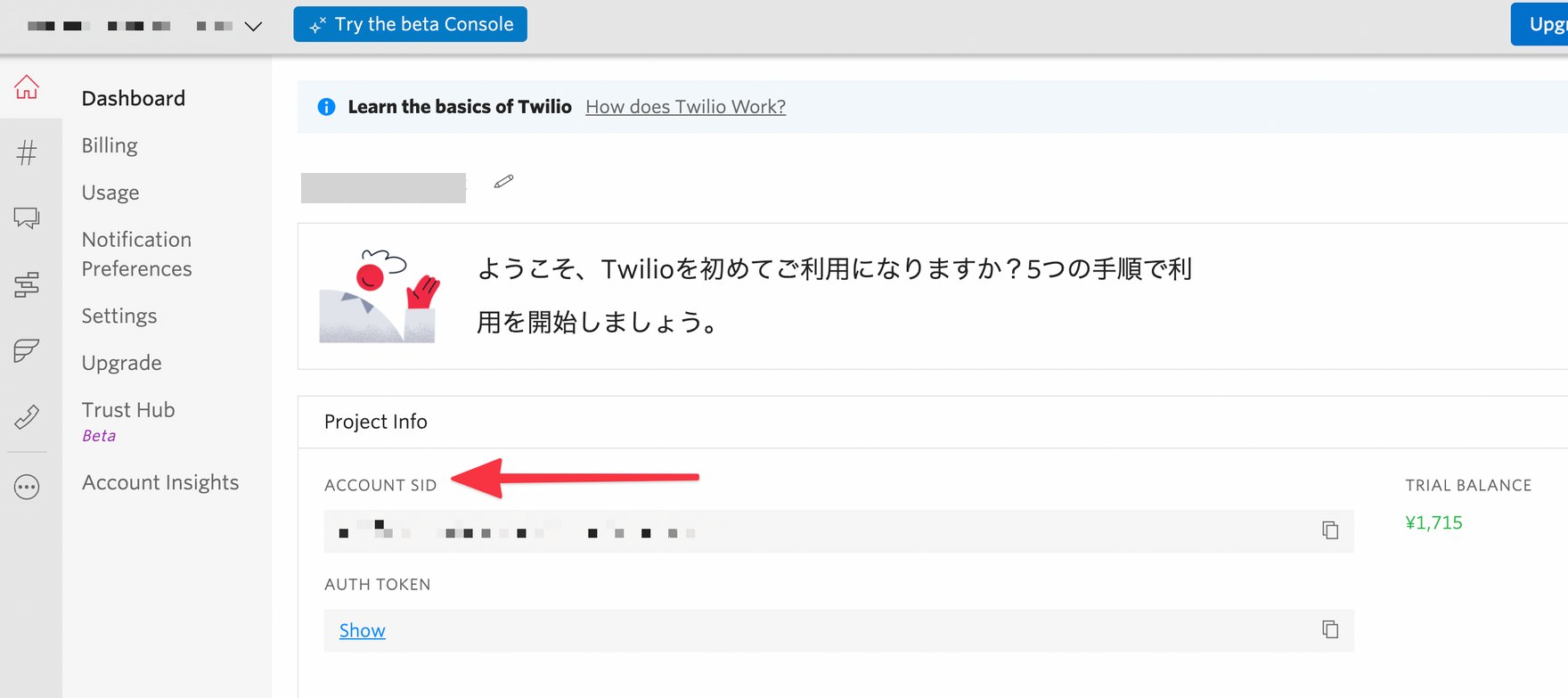
Integration Setup
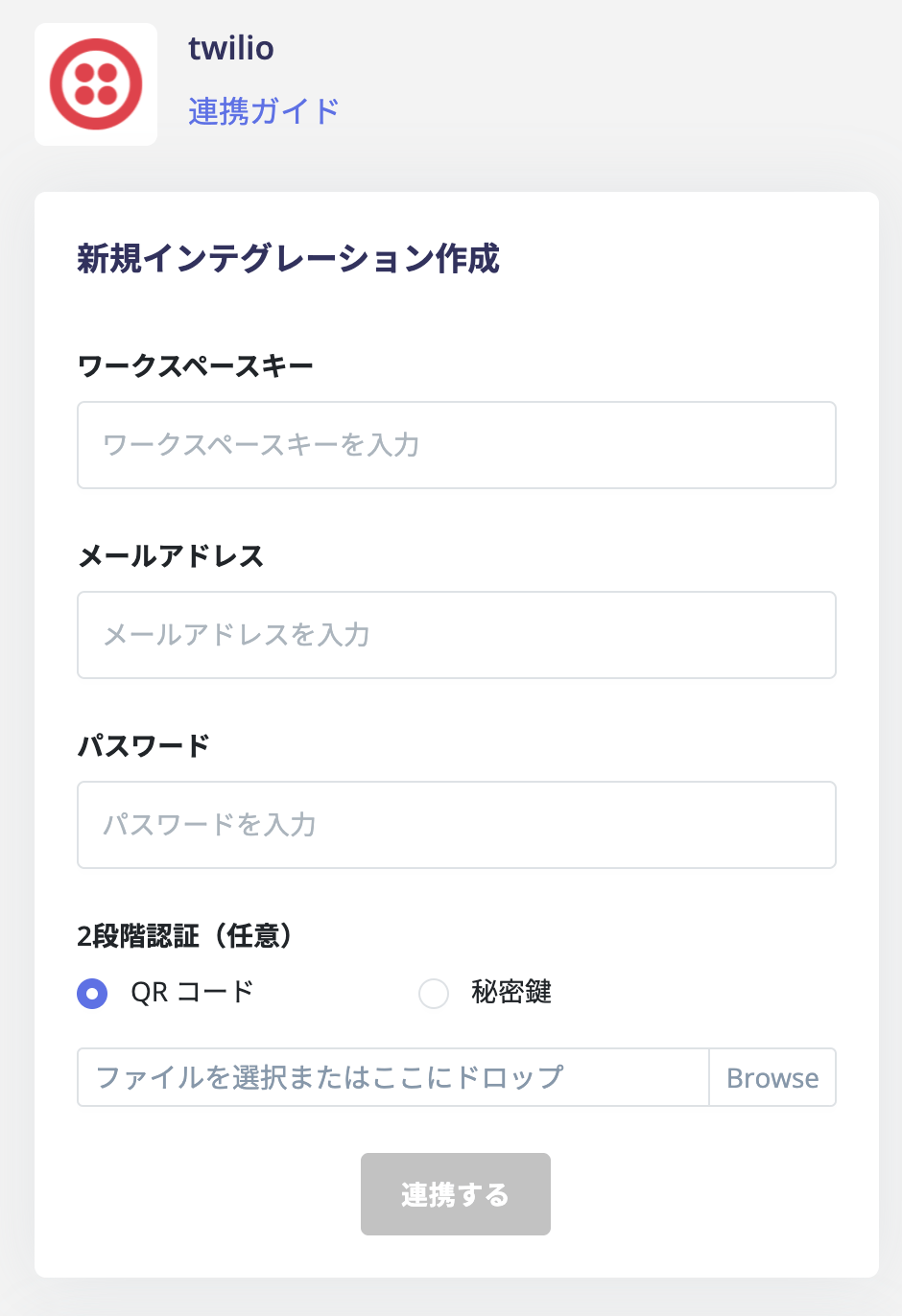
In the MoneyForward Admina integration screen, search for Twilio.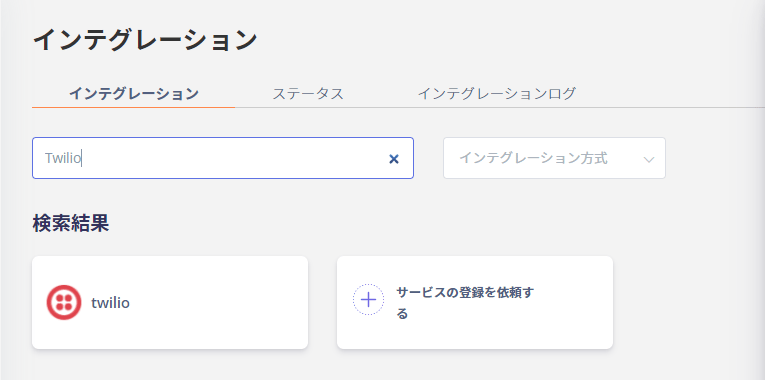
- Workspace key: Account SID
- Email address: Email address of the account with Admin permissions
- Password: Password of the account with Admin permissions
- Two-factor authentication: Upload the QR code image obtained in the previous step