Supported Features
Account DeactivationThe integration requires organization administrator permissions.
Prerequisites
How to Log In to Atlassian
Go to the Atlassian login page and log in using your preferred login method or enter your email address and password.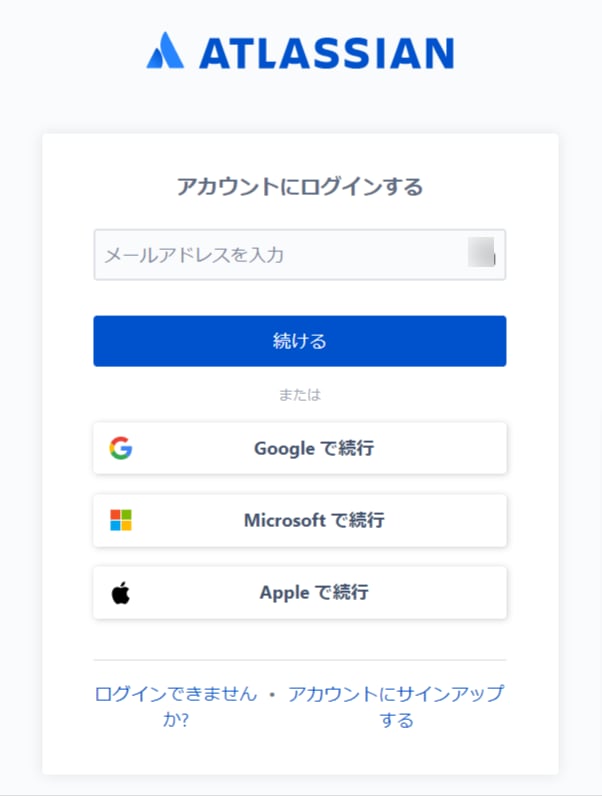
Required Setup Before Integration (Creating an Organization and Verifying a Domain)
Admina retrieves managed accounts (Managed Accounts) that have email addresses with verified domains. If you have not created an organization or verified a domain, accounts cannot be retrieved. Please complete the following steps on the Atlassian side before connecting.- Creating an organization: What is an Atlassian organization? (external site)
- Domain verification: Verify a domain (external site)
You need managed accounts, not users. What are Atlassian managed accounts? (external site)
For account retrieval, please also refer to the information about retrieving accounts for Atlassian services.
How to Obtain an API Key
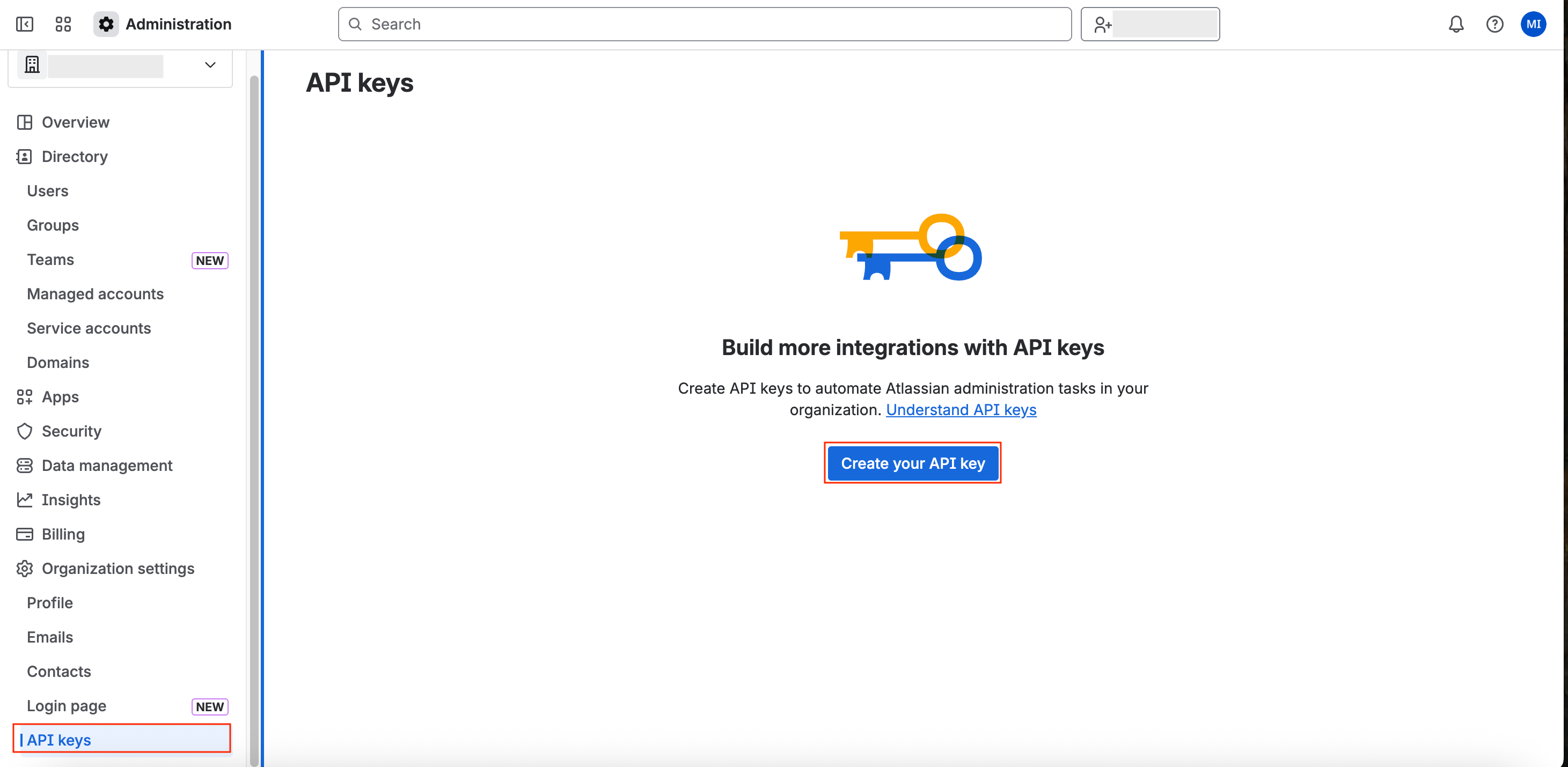
- Go to Atlassian Admin and navigate to Organization Settings > API keys.
- Click Create your API key.
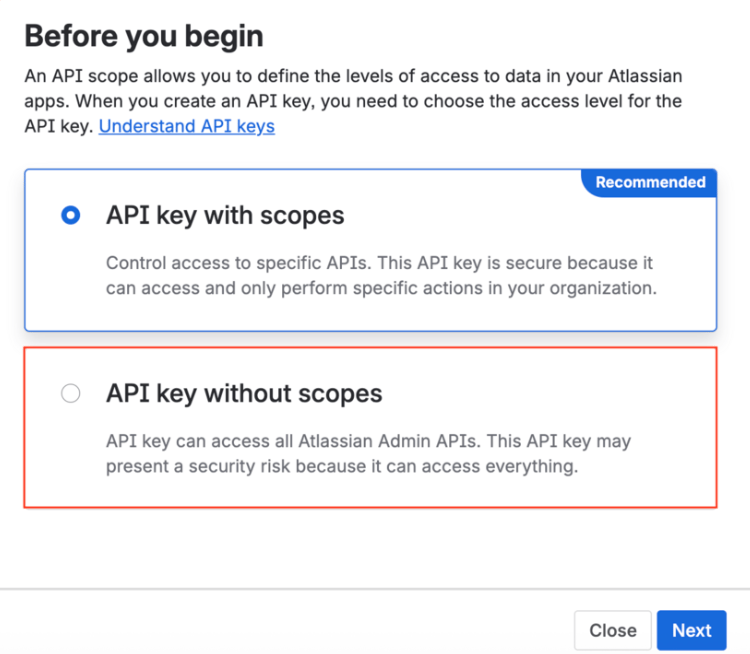
- A screen to select Scopes will appear. Click API key without scopes.
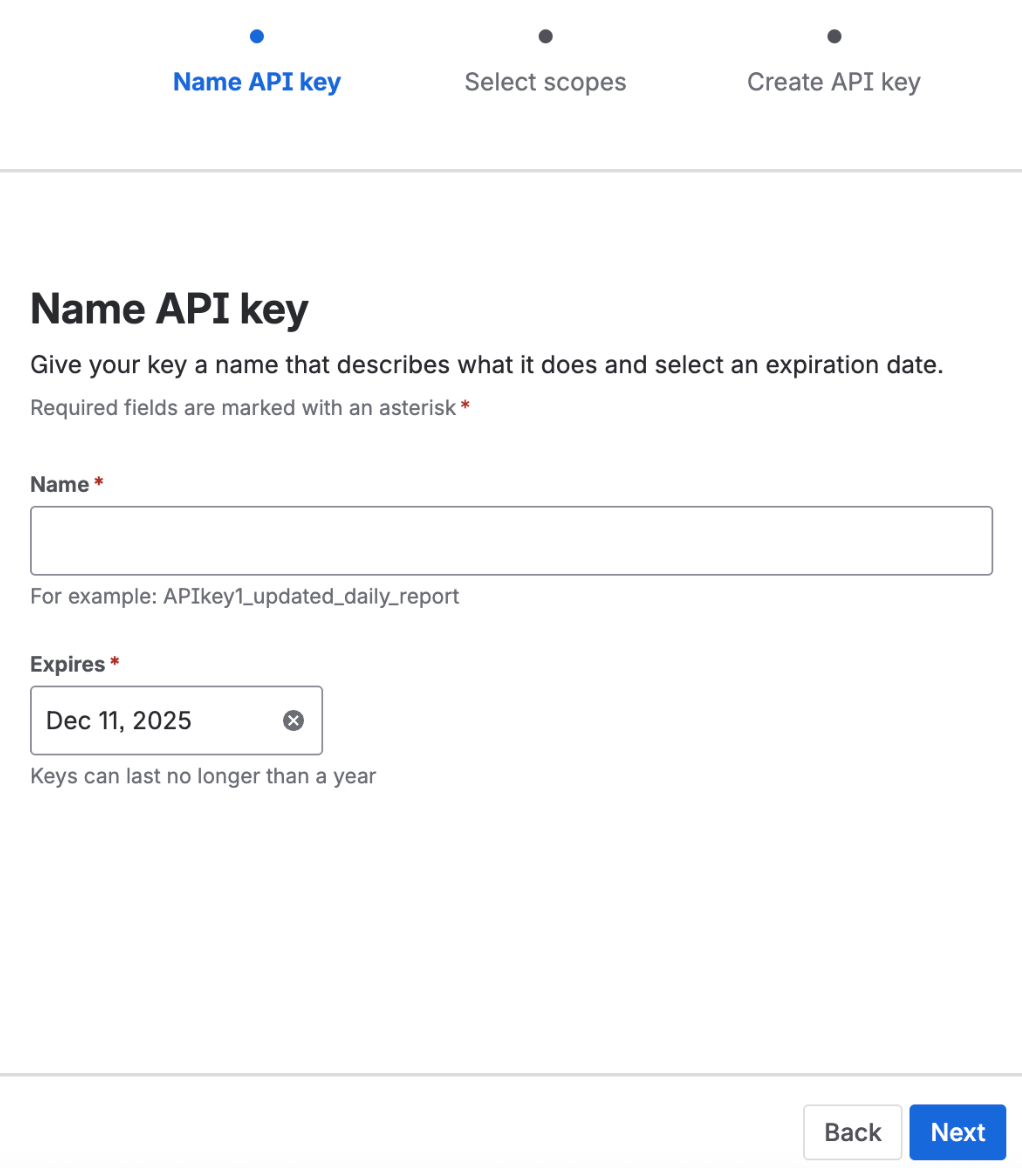
- Enter a name of your choice and set an expiration date.
The default expiration period is one week. You can also set a custom period. Once expired, you will need to issue a new API key.
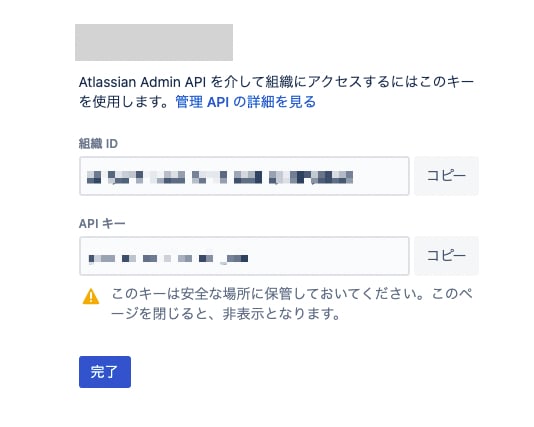
- Your Organization ID and API key will be generated.
Integration Setup
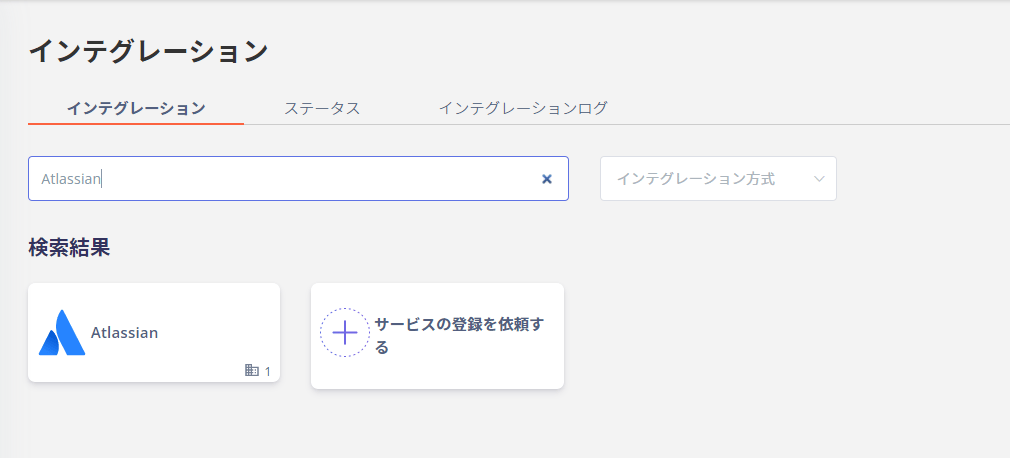
- In the MoneyForward Admina integration screen, search for Atlassian.
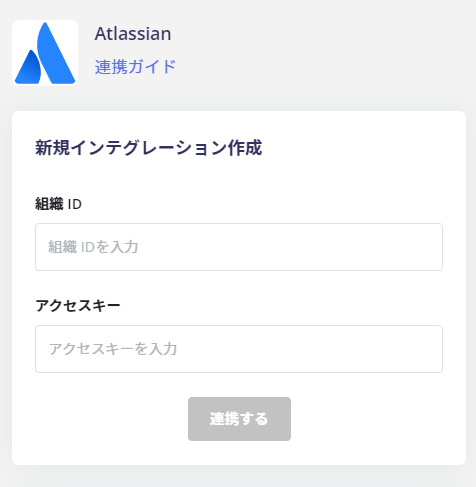
- Enter the Organization ID obtained in the previous step and the API key in the Access Key field, then click Connect.
- Once the integration with Atlassian is successful, the registered user information will be displayed in the account list.
0 even after a successful connection, please verify that the organization creation and domain verification described above have been completed.
If the integration does not complete successfully, click Edit in the Status tab of the integration screen and try connecting again.
If the issue persists, please contact us via chat.
For an overview of the Atlassian integration, see the integration page.
FAQ
Q. I want to know about retrieving accounts for Atlassian services
A. For Atlassian services, the account information listed under Retrieved Information below is obtained. What are Atlassian managed accounts? (external site) For account retrieval, please also refer to About retrieving accounts for Atlassian services.| SaaS Name | Retrieved Information |
|---|---|
| Atlassian | Only users with verified domain email addresses can be retrieved (external domains that are not verified, i.e., external IDs, cannot be retrieved) |
| Atlassian series: Jira, Trello, Confluence | Retrieved information varies depending on Atlassian ID settings (if “Default access” is set to “Private”, email addresses cannot be retrieved) |
Q. Can I check Jira, Confluence, and Trello licenses after integrating with Atlassian?
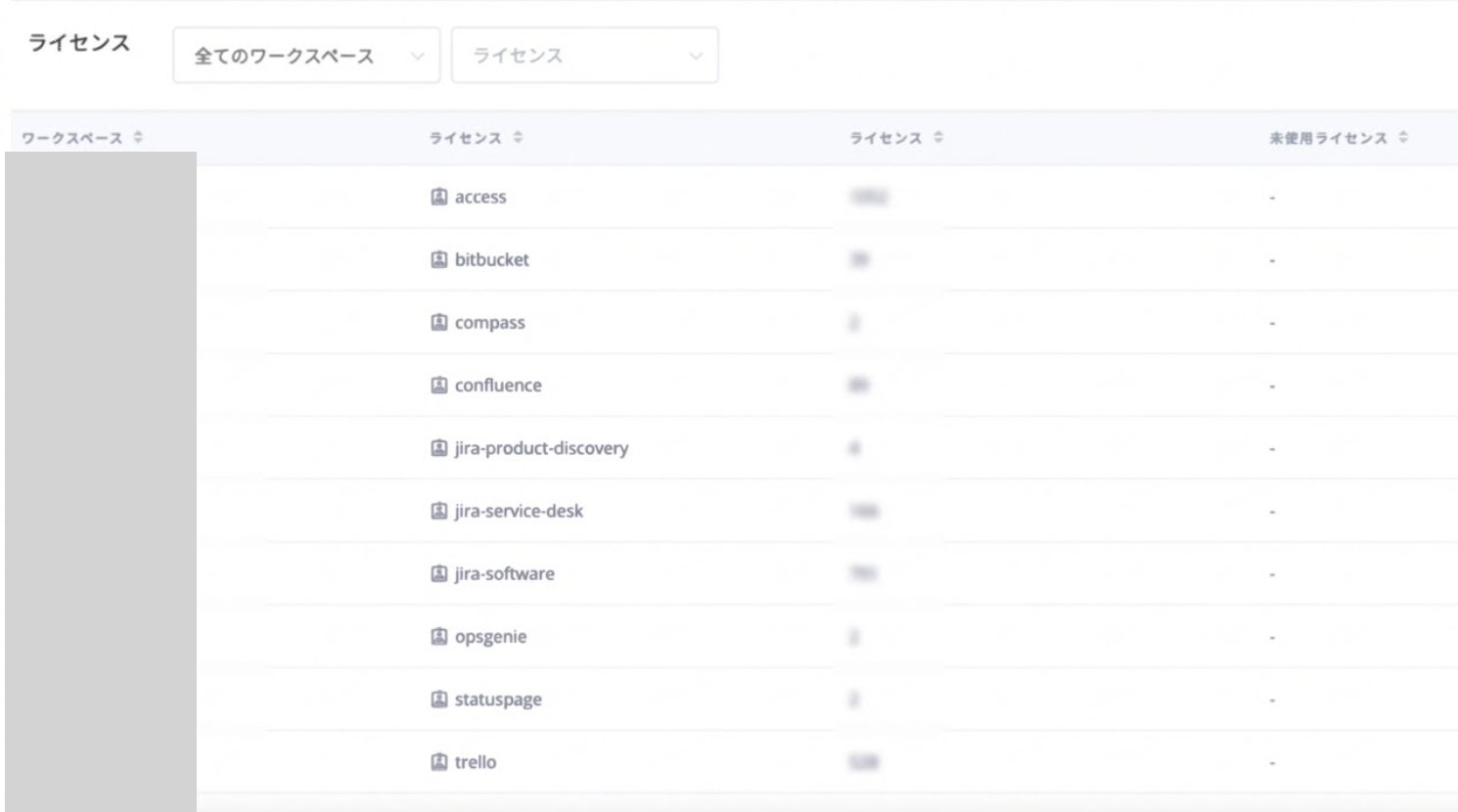
A. Retrieved Jira, Trello, and Confluence accounts can be verified via Services > Atlassian > Info > License, or Services > Atlassian > Accounts > Filter by “License”. For details, refer to Accounts (Service Details) and Info (Service Details).